Map
The Map shows drones live as your sensors detect them, with their pilots, your sensors and your alarm zones. Everyone in your organization can see it.
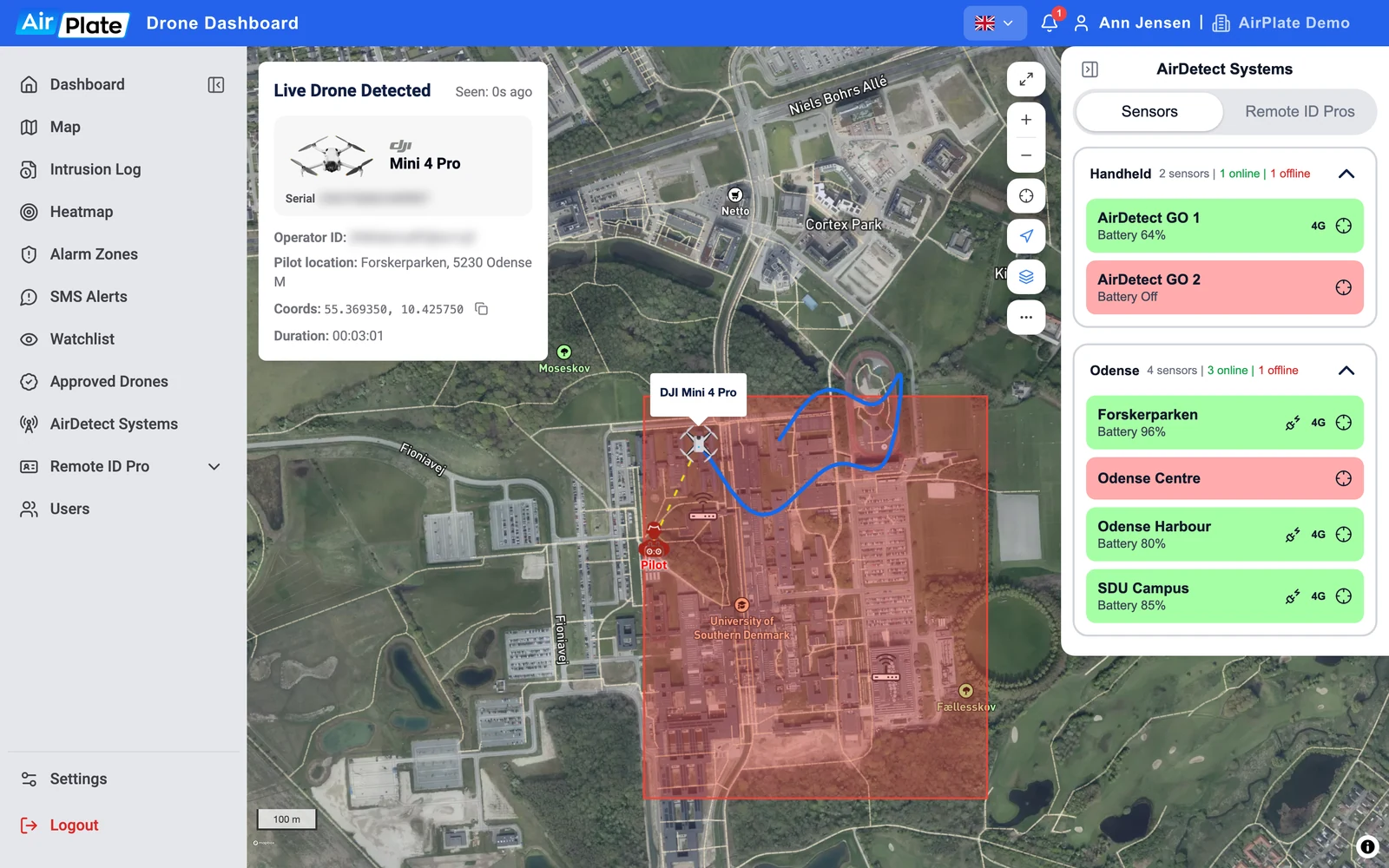
- Live Drone Detected
Model, serial number, operator ID and pilot location - Drone
Its live position and track - Pilot
Where the pilot is, or where the drone took off - Alarm zone
One of your alarm zones - AirDetect Systems
Your sensors and their status
Live drones
Section titled “Live drones”The Live Drones list on the left shows every drone heard in the last 10 minutes; with no drone selected, the card lists them all. Click a drone to fly to it. Hide the list with the arrow, and show it again with Show live drones.
On the map, each drone has its height and speed under it:
- Colour: the normal icon for an unapproved drone, green for an approved drone, red for a watchlisted drone. An approved drone with Show on Map switched off is not drawn.
- Pilot: a dashed line joins the drone to its pilot. When only the take-off point is known, the icon says Take-off Point.
- Track and details: click a drone to draw its track so far and open its card: serial number, operator ID, pilot location or take-off point, coordinates and how long it has flown.
- Lost signal: after 2 minutes without news, a label shows how long ago the drone was last heard. After 2 hours, it is taken off the map.
Your alarm zones are drawn while they are switched on and inside their active period. Click one to see its name and status, and View intrusion log for the flights in it.
Map controls
Section titled “Map controls”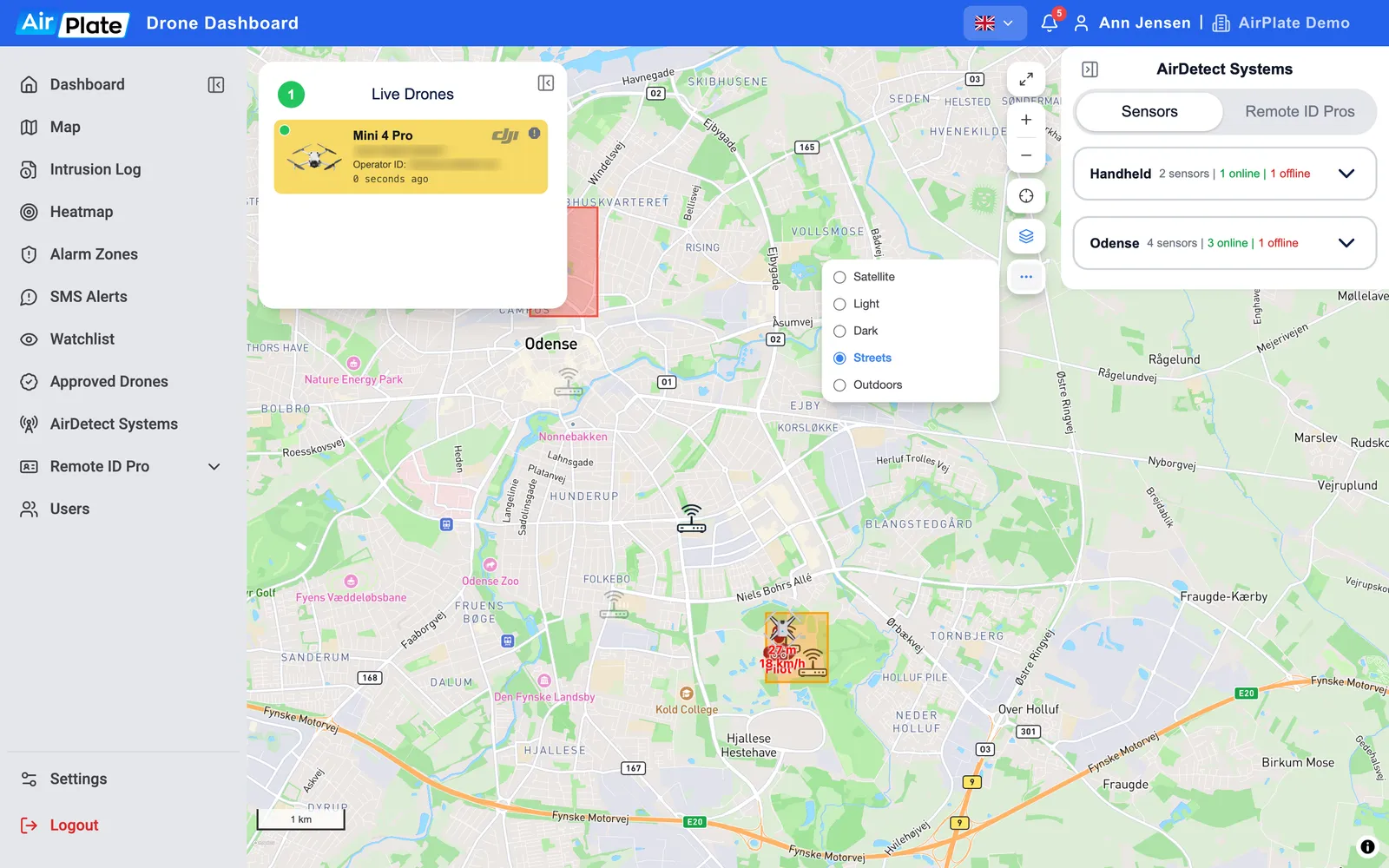
- Full screen and zoom
Make the map fill the screen, zoom in and out - My location
Show where you are - Zone overlays
The official drone zones - Map style
Satellite, Light, Dark, Streets or Outdoors
- Zone overlays switches the official overlays on and off together: Danish drone zones, active NOTAMs, Faroese zones and nature areas. It doesn’t hide your own alarm zones.
- Map style opens when you point at the … button. The style you pick lasts until you leave the page; the starting style is the one in your Settings.
- Follow drone appears while a drone’s track is drawn: the map then follows the drone.
Sensor status
Section titled “Sensor status”The AirDetect Systems panel on the right lists your sensors in their groups, with how many are online. Each sensor is green when it is online and red when it is offline, with its battery level and mobile signal. Click a sensor to fly to it; click its pin on the map for its name and IMEI. If your organization also has Remote ID Pro units, the panel has a tab for them.
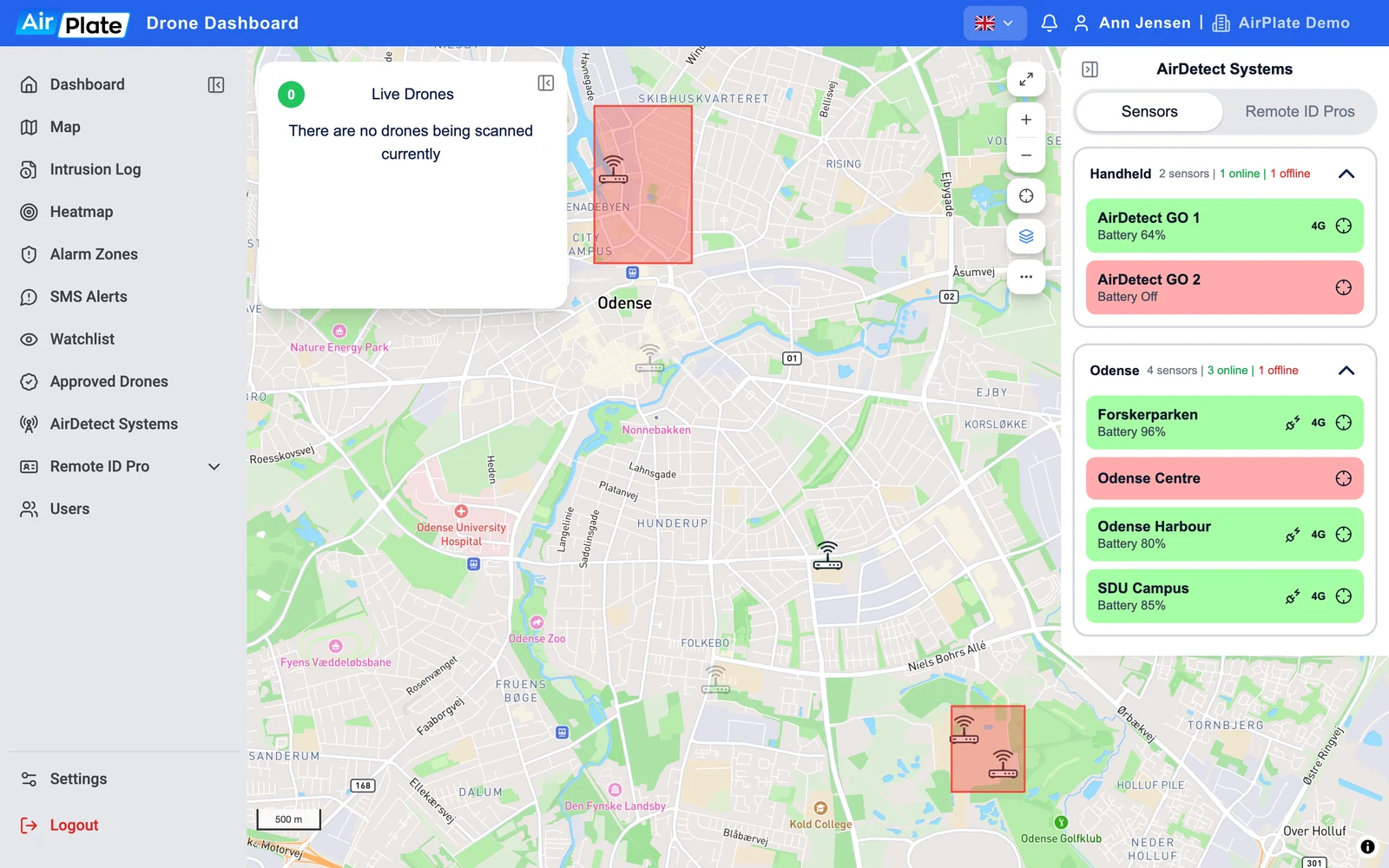
The Map page reloads itself every hour, so it can run on a wall screen.