Approved Drones
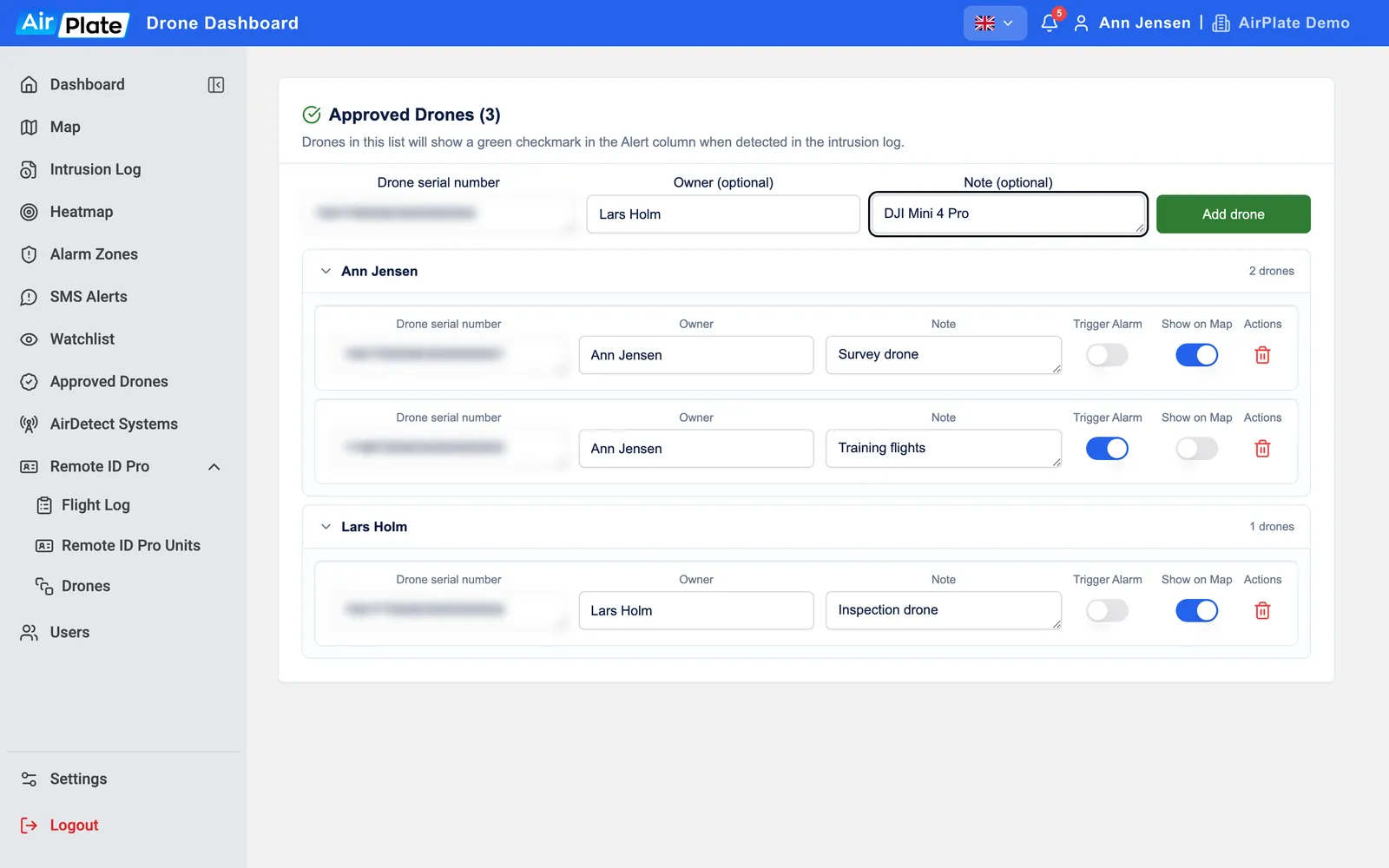
Approved Drones is your list of known drones, such as your own. For each one you choose whether it still raises alarms (Trigger Alarm) and whether it is drawn on the live map (Show on Map). Drones are grouped by owner. Operators and Admins can change the list.
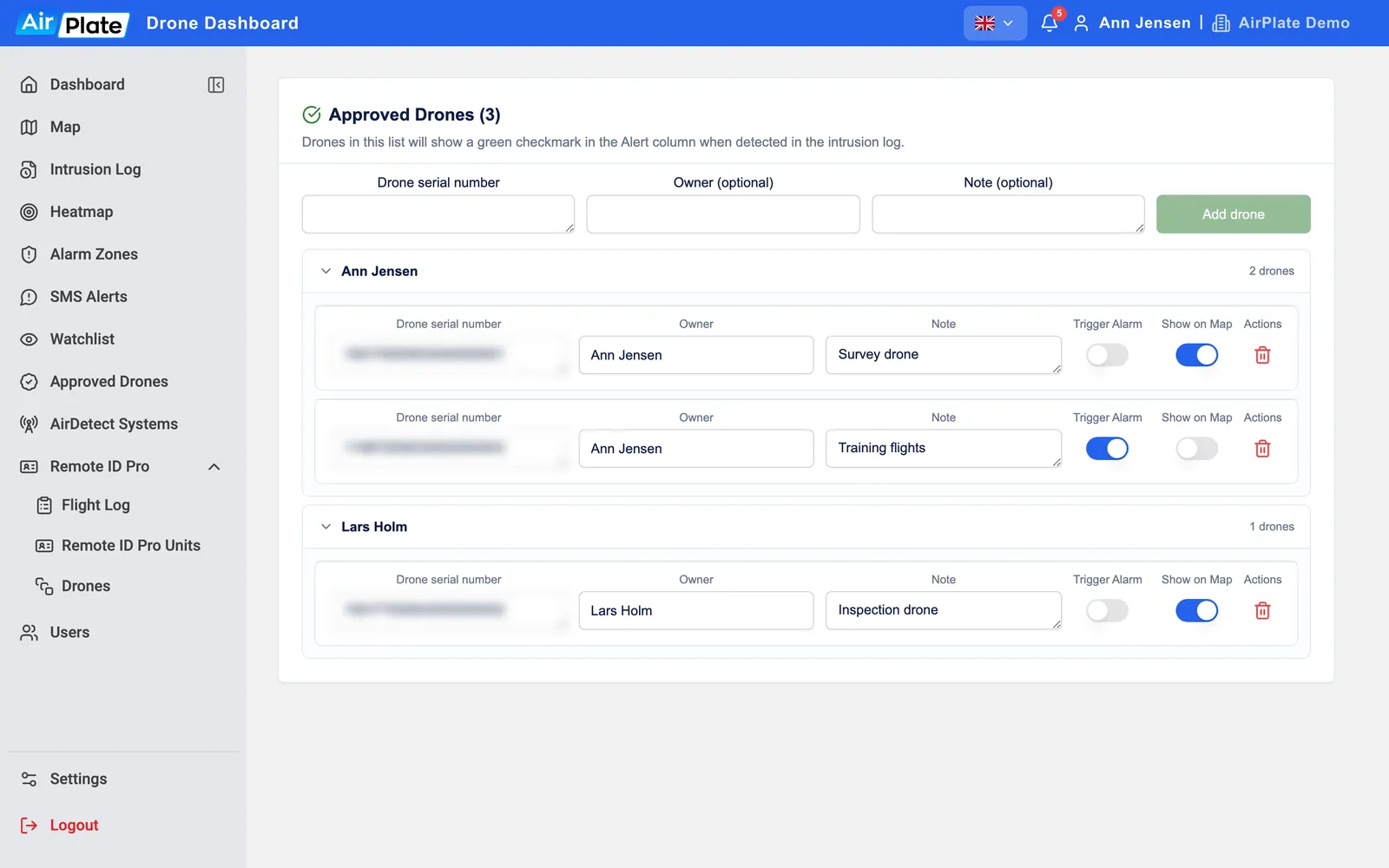
- Add a drone
Serial number, owner and note - Add drone
Add it to the list - Owner
Drones are grouped by owner - Trigger Alarm
Whether the drone still raises alarms - Show on Map
Whether the drone is drawn on the live map
Add a drone
Section titled “Add a drone”Type the Drone serial number, and if you like an Owner (the app suggests owners you have used before) and a Note, then click Add drone. Edit an entry in the list: it is saved when you leave the field. To take a drone off the list, click the bin and confirm.
The two switches
Section titled “The two switches”| Alerts | Map and Live Drones | |
|---|---|---|
| Not approved | Normal alerts | Normal icon, yellow in Live Drones |
| Trigger Alarm on | Alerts are still sent | Green icon, green in Live Drones |
| Trigger Alarm off | No alerts for this drone | Green icon, green in Live Drones |
| Show on Map off | No change | Not drawn on the map and no pop-up; still listed in Live Drones |
In the Intrusion Log, an approved drone has a green check.
A drone can’t be on both Approved Drones and the Watchlist. Drones are matched by serial number, so a drone that sends no serial number can’t be matched.