
Dashboard
The Dashboard is the first page you see after logging in: an overview of drone activity at your sites. Everyone in your organization can see it.
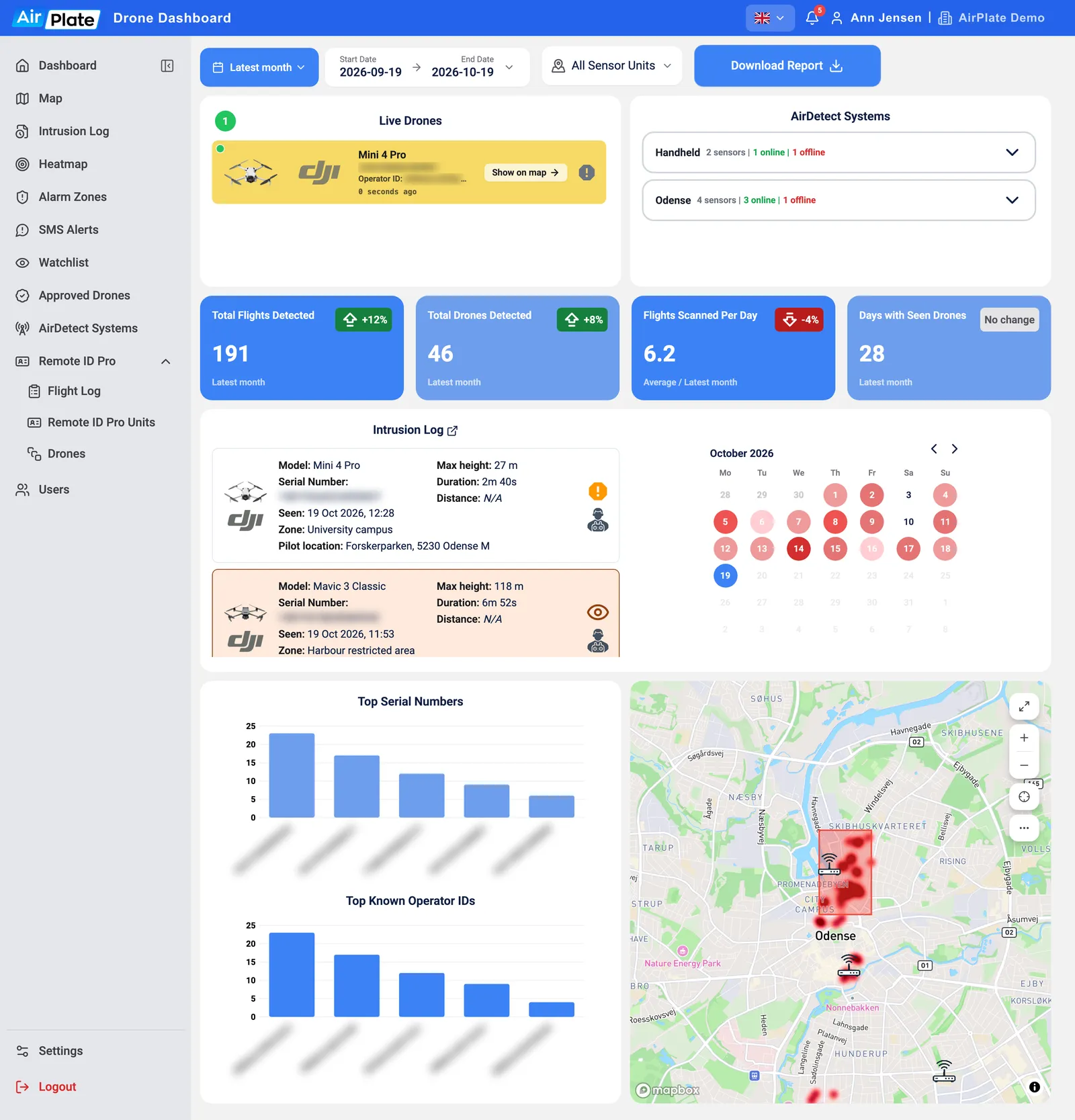
- Period and sensors
What the numbers, charts and heatmap cover - Download Report
A PDF report for the period - Live Drones
Drones flying now - AirDetect Systems
Your sensors and their status - Numbers for the period
Flights, drones, flights per day and days with drones - Intrusion Log and calendar
The detections of one day - Top serial numbers and operator IDs
The drones and pilots seen most often - Heatmap
Where drones were flown from
Period and sensors
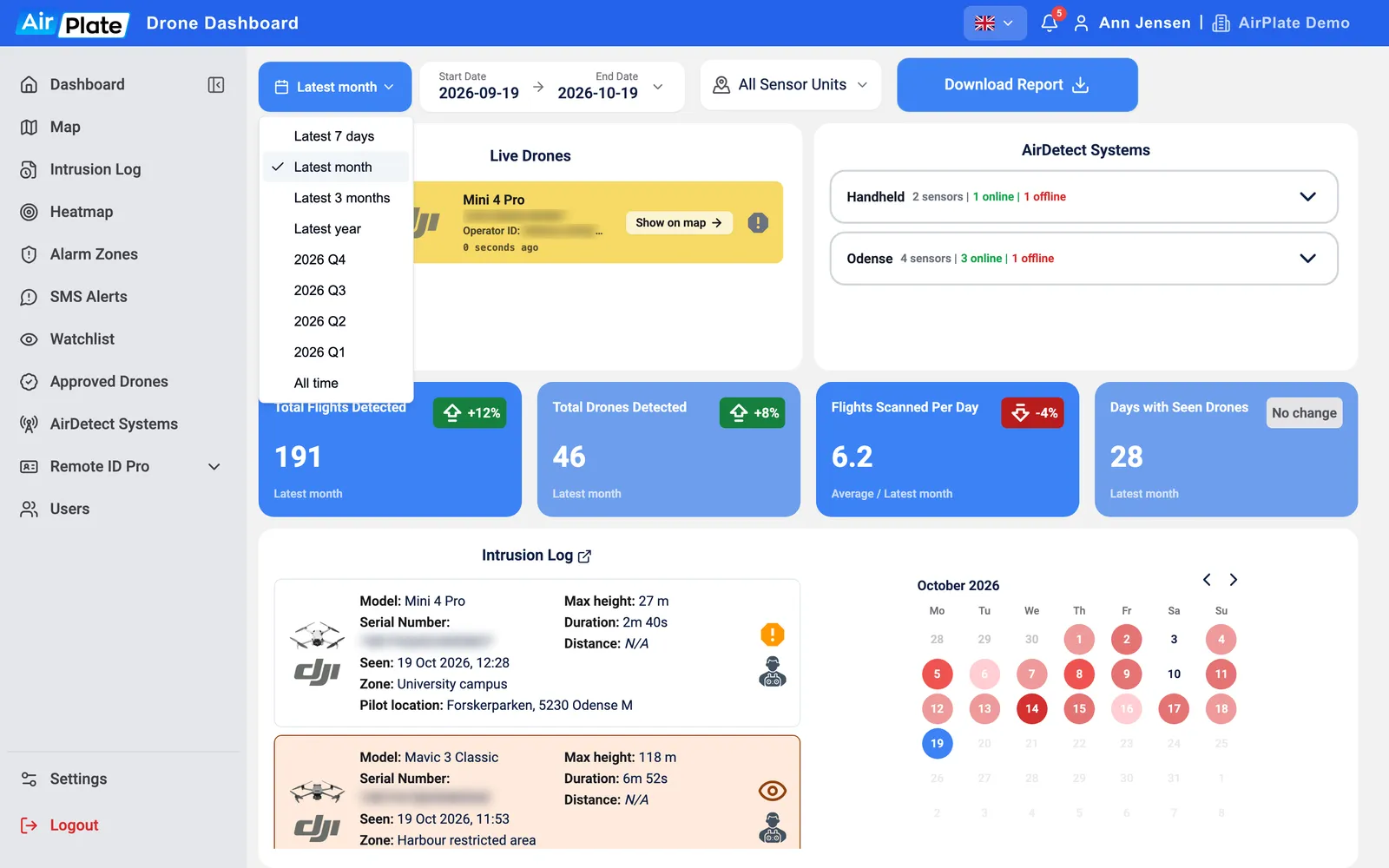
Section titled “Period and sensors”The period starts at Latest month. Pick another in the list: Latest 7 days, Latest month, Latest 3 months, Latest year, one of the last four quarters, or All time. For your own dates, click Start Date → End Date, pick the days in the calendar and click Save.
All Sensor Units lets you pick which sensors to include. The period and the sensors apply to the number tiles, the top charts, the heatmap and the calendar. Live Drones, the AirDetect Systems card and the day’s intrusion log always show everything.
Download Report builds a PDF report for the period and sensors you picked.
Live Drones and your sensors
Section titled “Live Drones and your sensors”Live Drones lists every drone heard in the last 10 minutes, with its model, serial number, operator ID and when it was last heard. The colour shows its status: yellow for an unapproved drone, green for an approved drone, orange for a watchlisted drone. Watchlisted drones are listed first. Show on map opens the Map at the drone, with its track.
AirDetect Systems shows your sensors in their groups: green when online, red when offline, with the battery level for sensors that run on battery, a plug when charging and 4G when connected. The crosshair opens the Map at the sensor.
Numbers for the period
Section titled “Numbers for the period”| Tile | What it counts |
|---|---|
| Total Flights Detected | Flights detected in the period |
| Total Drones Detected | Different drones, by serial number. Drones that send no serial number are counted by model |
| Flights Scanned Per Day | The average number of flights per day |
| Days with Seen Drones | Days with at least one detection |
The badge on each tile compares with the same length of time just before the period: green and up, red and down, or No change.
Intrusion Log and calendar
Section titled “Intrusion Log and calendar”The Intrusion Log card lists the detections of one day, newest first: model, serial number, when it was seen, its maximum height, how long it flew, its distance, the alarm zone and the pilot location. Click a detection for its details. The arrow next to the title opens the full Intrusion Log.
The calendar shades each day by its number of flights. Click a day to show its detections in the list.
Top drones and the heatmap
Section titled “Top drones and the heatmap”Top Serial Numbers and Top Known Operator IDs show the five drones and operator IDs seen most often in the period. Click a bar to open the Intrusion Log for that drone or operator. The heatmap works as on the Heatmap page.