
AirDetect Systems
AirDetect Systems lists your sensors. Here you name them, put them in groups, switch off GNSS on sensors your organization owns, and open one sensor’s intrusion log. Operators and Admins can use this page. Battery, signal and online status are on the Dashboard and the Map.
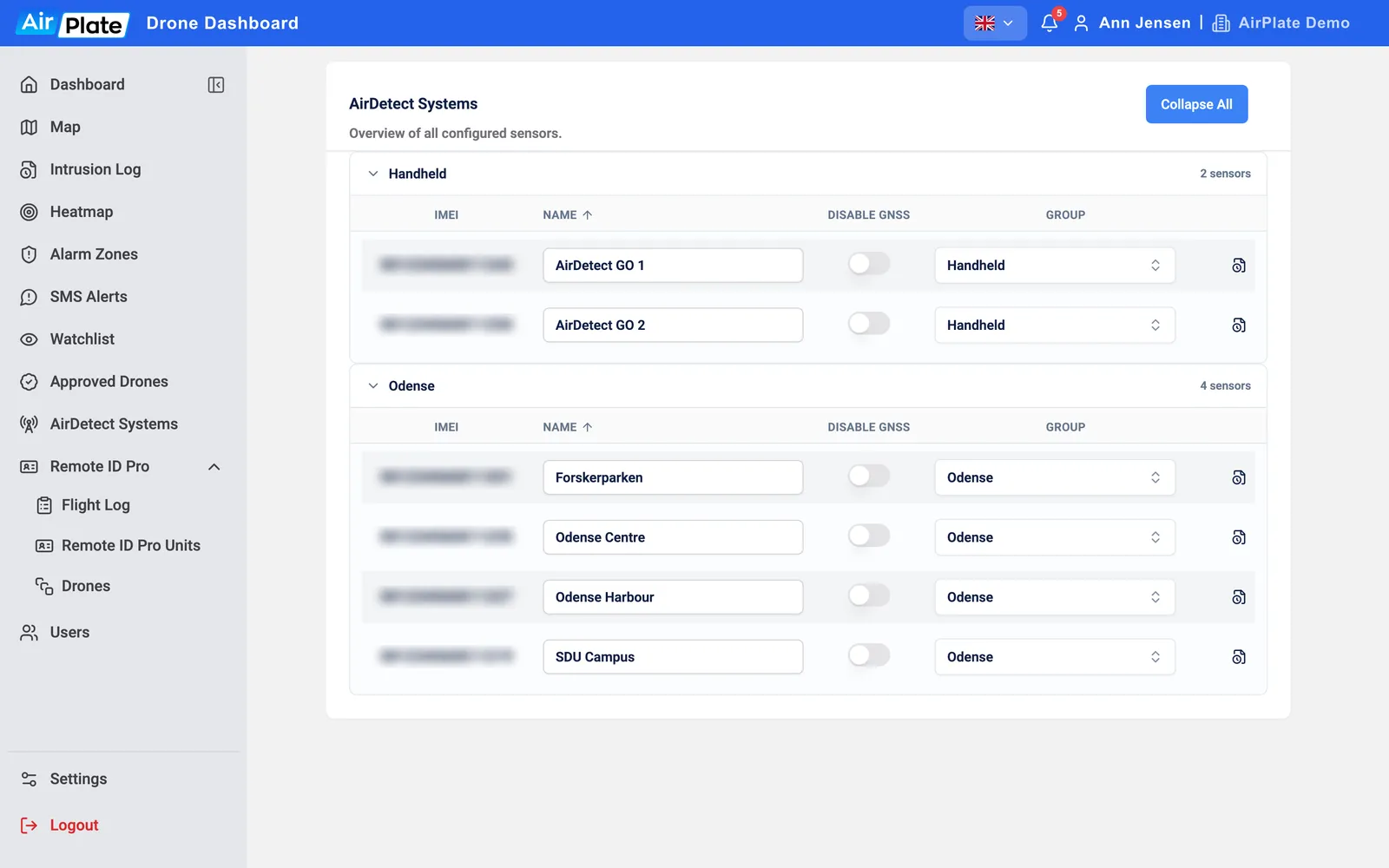
- Group
Sensors in a group, with how many there are - Name
Click to rename the sensor - Disable GNSS
Switch off the sensor’s satellite positioning - Group picker
Move the sensor to a group, or make a new one - Intrusion log
The flights this sensor detected
Everything is saved as you change it; there is no Save button. Collapse All and Expand All fold the groups.
Name a sensor
Section titled “Name a sensor”Click the name, type the new one and press Enter (Esc cancels). The name is your organization’s own: if you share a sensor with another organization, they keep their name for it.
Groups
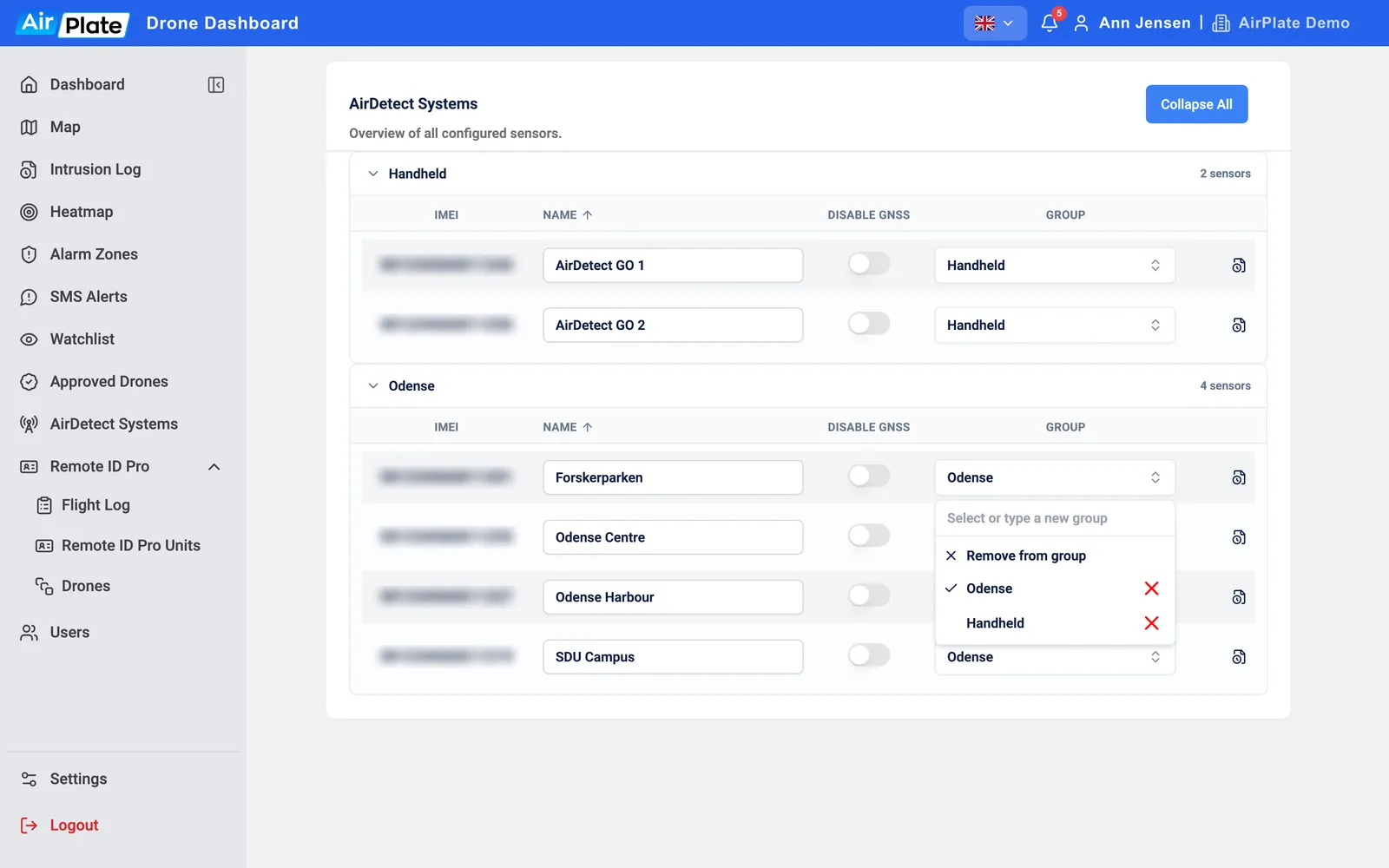
Section titled “Groups”Groups keep your sensors in order on this page, the Dashboard and the Map. Click a sensor’s group to open the picker:
- Pick a group to move the sensor there. A sensor is in one group at a time.
- To make a new group, type its name and click Use “…”.
- Remove from group puts the sensor under Ungrouped.
- The red ✕ next to a group deletes the group for all your sensors, after you confirm.
Disable GNSS
Section titled “Disable GNSS”Disable GNSS is only shown for sensors your organization owns. When you switch it on, the sensor switches off its satellite positioning the next time it checks in, and its pin disappears from the map straight away.
One sensor’s intrusion log
Section titled “One sensor’s intrusion log”The log button at the end of a row opens the Intrusion Log with only the flights this sensor detected.