
Two-Factor Authentication (2FA) with TOTP
To enhance account security, our platform supports Two-Factor Authentication (2FA) using Time-Based One-Time Passwords (TOTP). This adds an extra layer of protection beyond your password.
What is 2FA?
Section titled “What is 2FA?”Two-Factor Authentication (2FA) is a security feature that requires two types of verification when logging in:
- Something you know – Your password.
- Something you have – A temporary code generated on your phone.
This makes it much harder for attackers to access your account, even if your password is compromised.
How TOTP Works
Section titled “How TOTP Works”TOTP is a widely used 2FA method that works as follows:
- You link your account to a TOTP authenticator app (such as Google Authenticator, Microsoft Authenticator, or Okta Verify).
- The app generates a 6-digit code that refreshes every 30 seconds.
- When logging in, you enter your password and the current code from the app.
Since codes are time-sensitive and generated locally, they cannot be reused or intercepted.
How to Enable 2FA with TOTP
Section titled “How to Enable 2FA with TOTP”Follow these steps to activate TOTP-based 2FA:
-
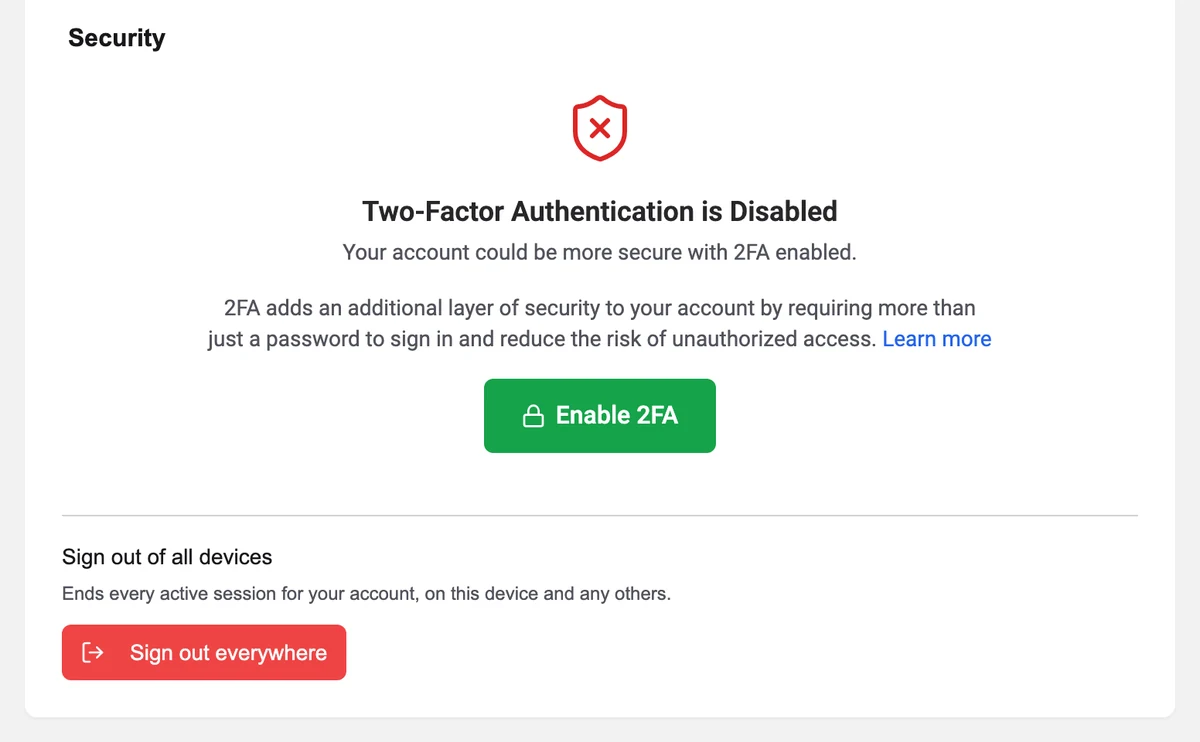
Open Settings at the bottom of the menu in the AirPlate app, and scroll down to Security. Press Enable 2FA.
-
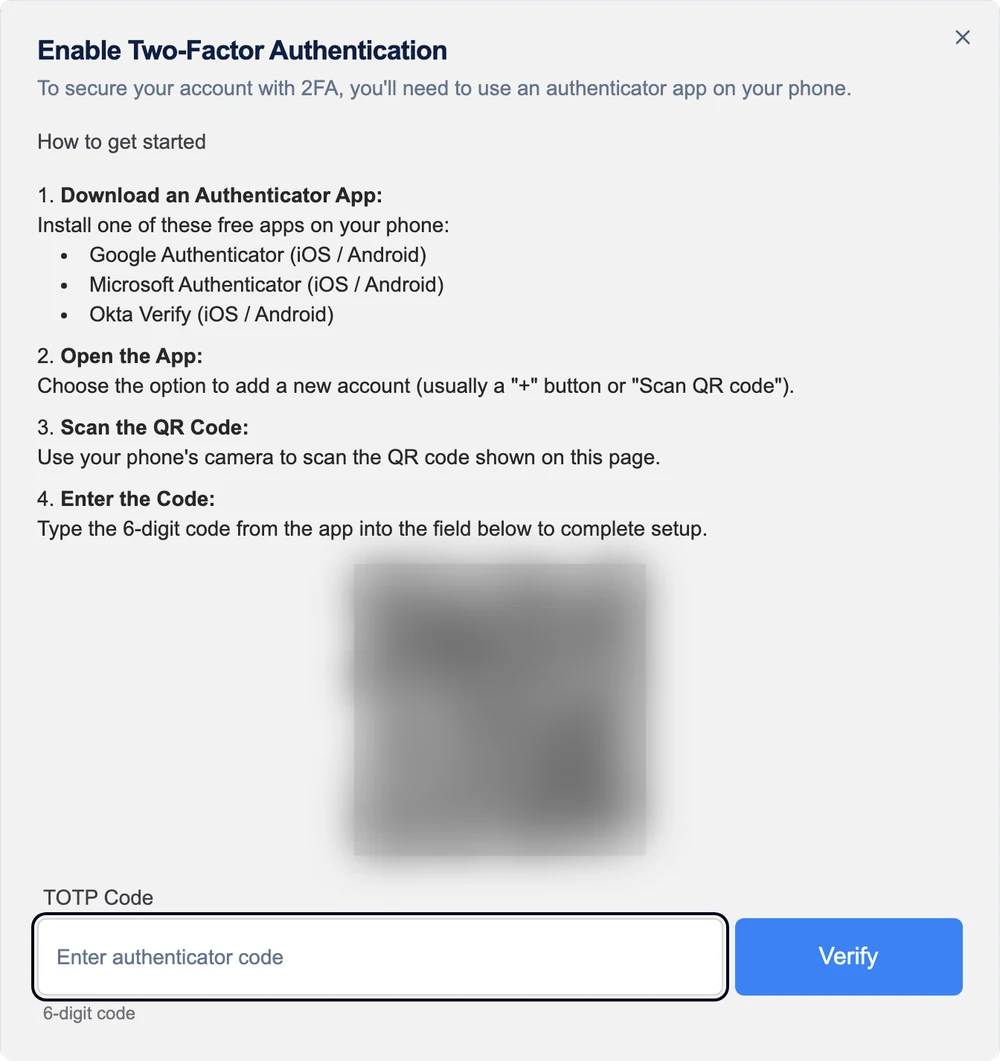
Install an authenticator app on your phone if you don’t have one, and choose to add a new account in it (usually a + button or Scan QR code).
-
Scan the QR code shown in the app with your authenticator app. Use the QR code on your own screen, not the example below.
-
Enter the verification code displayed in the authenticator app in TOTP Code, and press Verify to confirm setup.
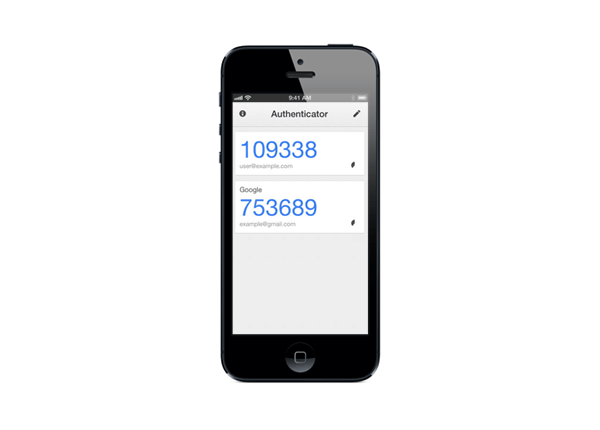
How your authenticator app might look -
Enter the 6-digit code from your authenticator app each time you log in to verify your identity.
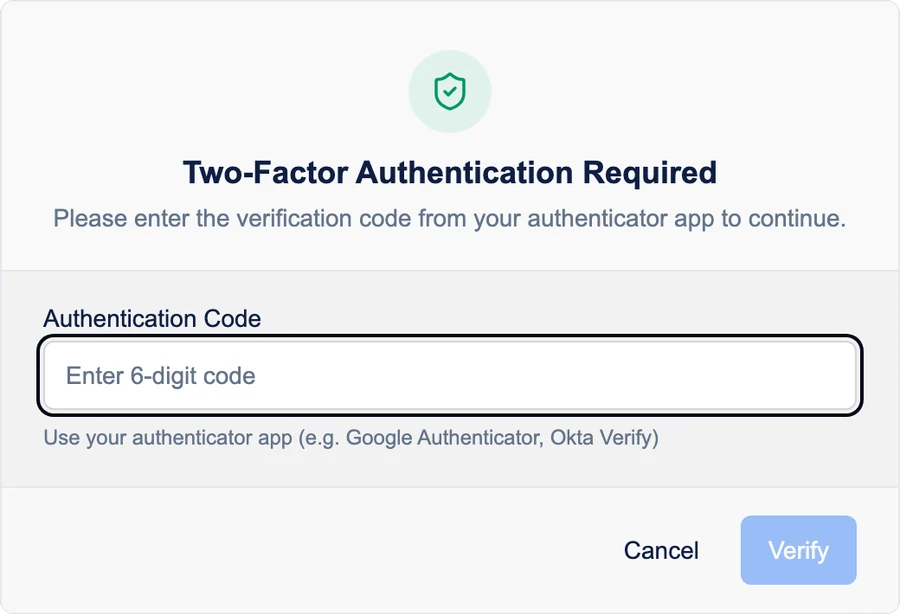
If you close the setup before verifying, nothing is changed: start again with Enable 2FA and you get a new QR code. To turn 2FA off, press Disable 2FA in the same Security section and confirm.
Lost the phone with your authenticator app? Contact support.
Why Use TOTP Instead of SMS?
Section titled “Why Use TOTP Instead of SMS?”TOTP offers several advantages over SMS-based 2FA:
- More secure: Codes are generated locally, while SMS codes can be intercepted.
- Works offline: No internet or mobile signal is required to generate codes.
- No SIM swap risk: Attackers can’t hijack your phone number to steal your codes.
By enabling 2FA with TOTP, you significantly enhance the security of your account and reduce the risk of unauthorized access.