
Heatmap
The Heatmap shows where drones were flown from over a period. Everyone in your organization can see it.
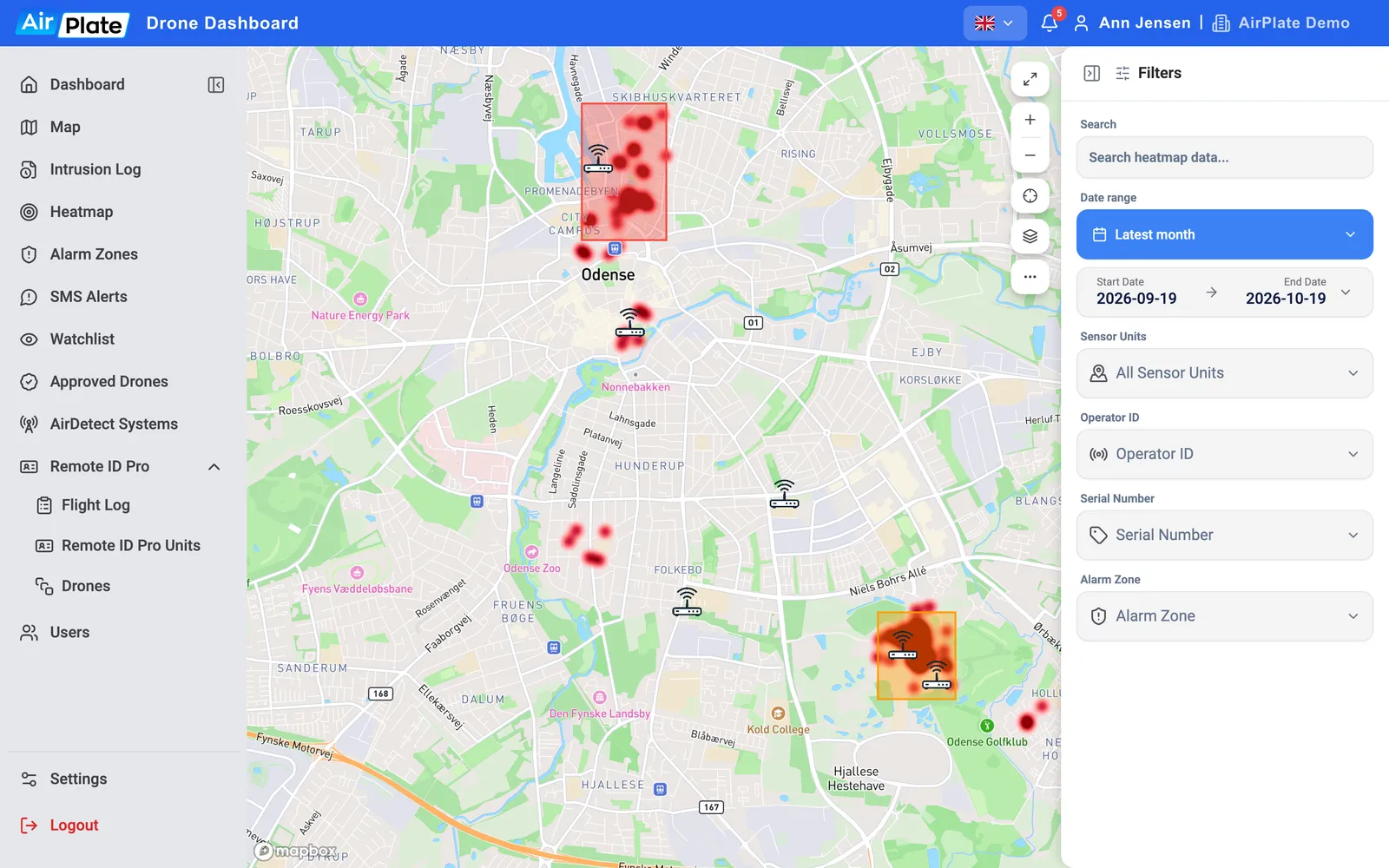
- Search
Find a serial number or operator ID - Date range
The period shown - Sensor Units
Which sensors to include - Operator ID and Serial Number
Show only some pilots or drones - Alarm Zone
Show only the flights in one of your zones
What it shows
Section titled “What it shows”Each detected flight counts once, at the pilot’s position, or at the drone’s position when no pilot position was received. Every flight counts the same, so the colour shows how many flights were flown from a place, not how long they lasted. When the page opens, the map moves to the busiest spot.
The period starts at Latest month, with the same choices as on the Dashboard. The heatmap doesn’t update live; reload the page for the newest flights.
Single flights
Section titled “Single flights”Zoom in to street level and the heat turns into dots, one per flight. Click a dot for the flight’s operator ID, serial number and date, and View log for its details.
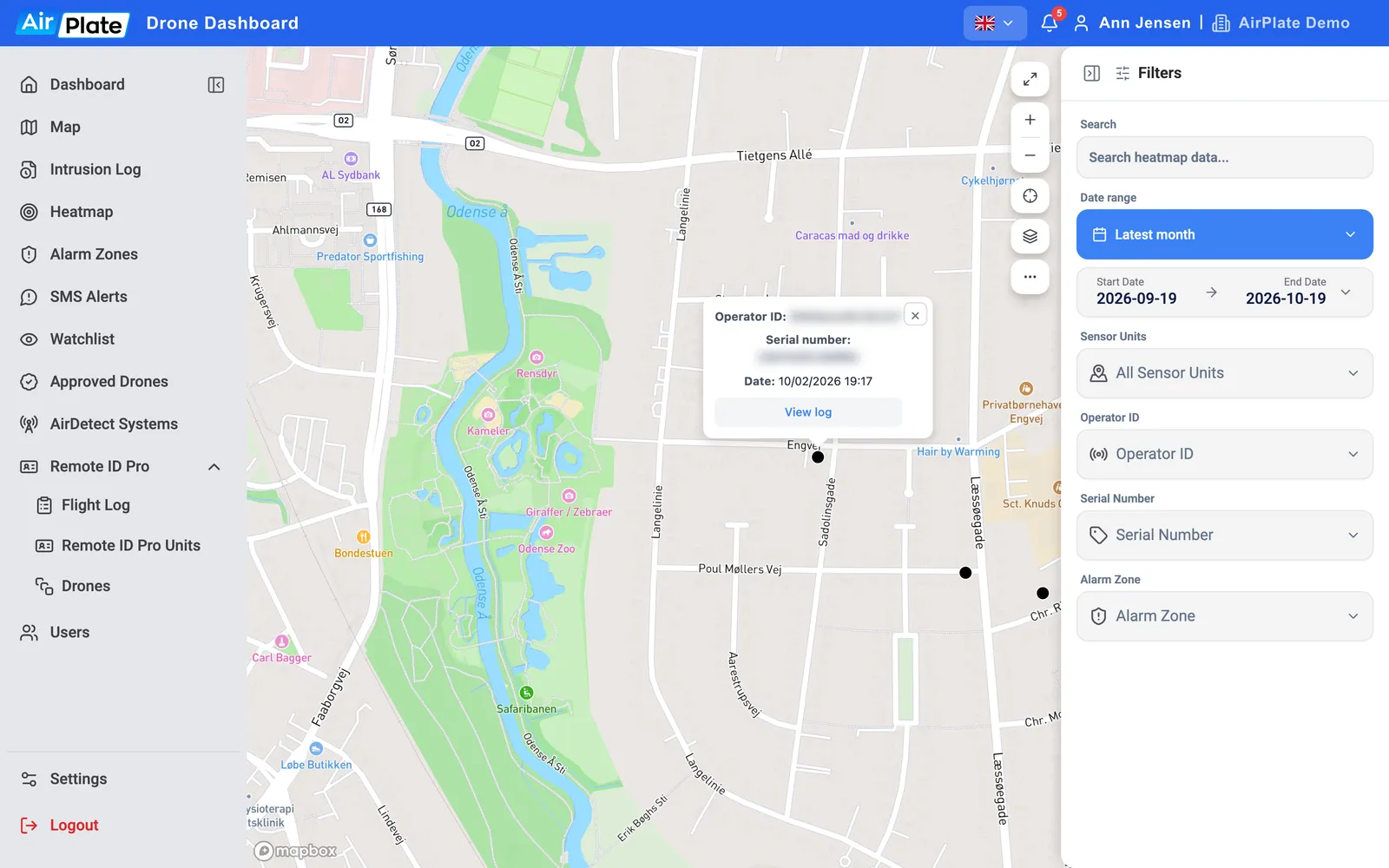
Filters
Section titled “Filters”- Search filters by serial number or operator ID as you type.
- Sensor Units, Operator ID and Serial Number each take several values. Alarm Zone appears when you have alarm zones; switched-off zones are marked (off).
- Clear All removes the filters, but not the date range or the search.
- The map’s layers button shows or hides the official drone zones.