
Alarm Zones
On Alarm Zones you draw your own areas on the map. When a drone enters a zone that is switched on, the people linked to that zone on SMS Alerts get a text, and the flight is marked with the zone in the Intrusion Log and on the Heatmap. Operators and Admins can use this page.
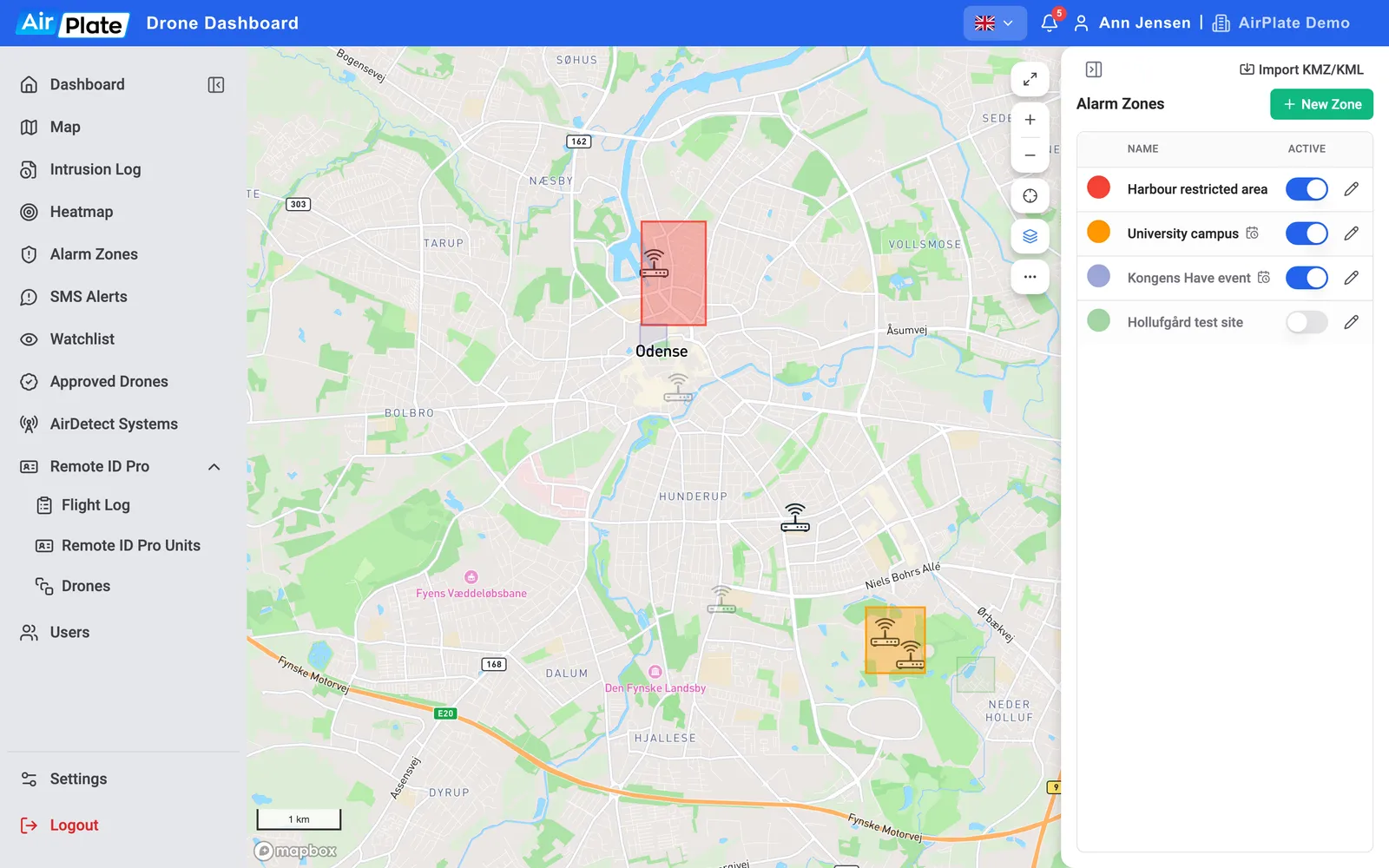
- Import KMZ/KML
Bring in zones from a file - New Zone
Start a new zone - Colour
How the zone is drawn - Active
Switch the zone on or off - Edit zone
Change its shape, name or active period
Create a zone
Section titled “Create a zone”- Click New Zone.
- Type a name.
- Click Insert circle or Insert square, or click points on the map to draw your own shape.
To bring in zones from Google Earth or another map tool, click Import KMZ/KML (up to 5 MB and 200 zones per file). Imported zones start switched off.
Edit a zone
Section titled “Edit a zone”Click the pencil, or double-click the zone in the list:
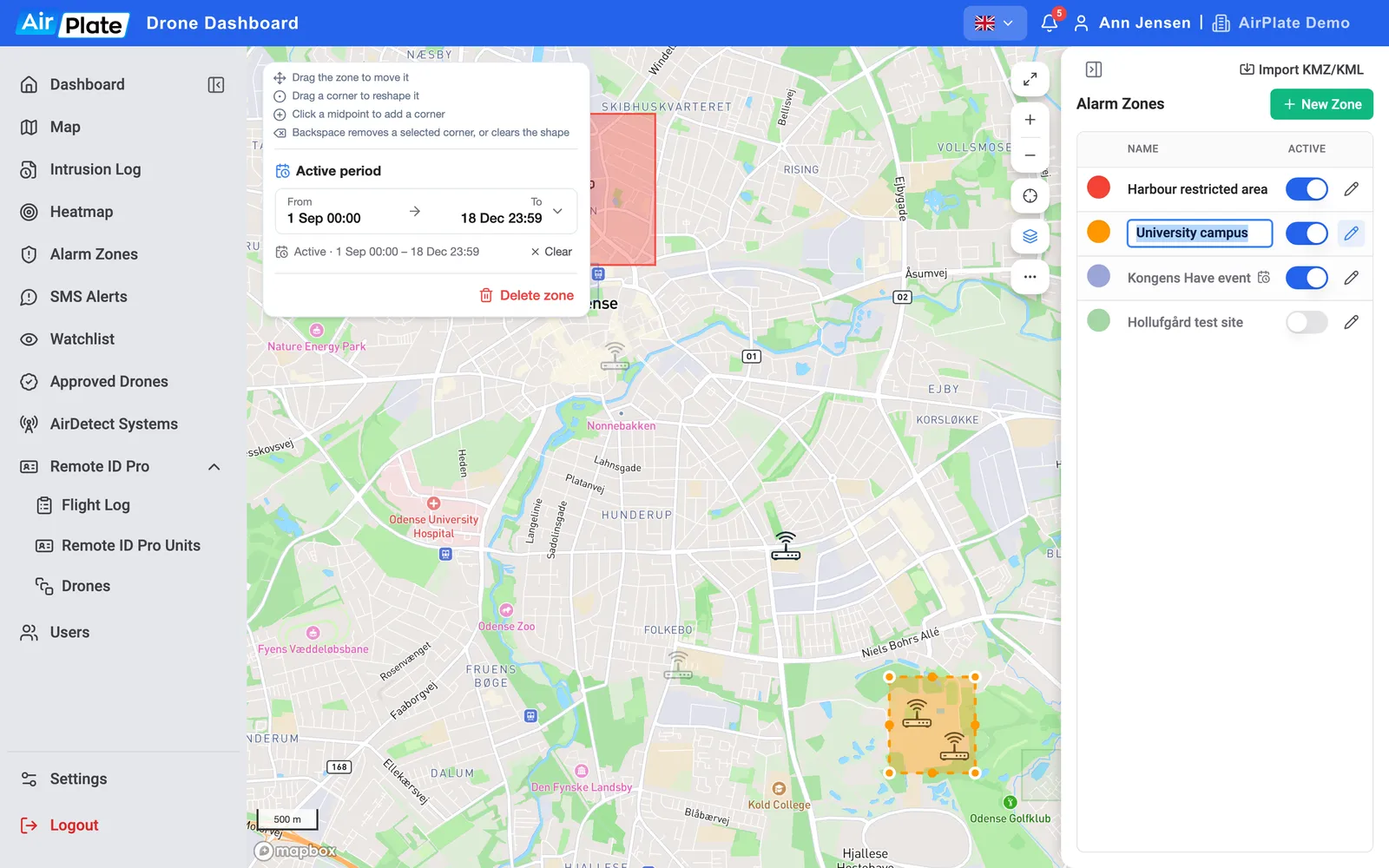
- Drag the zone to move it, drag a corner to reshape it, and click the midpoint of a side to add a corner. Backspace removes the selected corner, or clears the shape.
- For a circle, drag the handle or type the Radius in metres.
- Click the colour dot to change the colour.
There is no Save button: changes are saved as you make them. Close the zone with the pencil, Esc, or a click on an empty part of the map.
Switch a zone on and off
Section titled “Switch a zone on and off”The Active switch turns a zone on or off. To limit a zone to certain dates, for example an event, set an Active period in the editor (From and To, with times). Without a period, the zone is always active while it is switched on. Clear removes the period.
The list shows each zone’s state: Active, Inactive, Scheduled (its period hasn’t started) or Expired (its period is over). The Map and the Heatmap only draw zones that are active right now; here, the others are shown faded.
When a zone alerts
Section titled “When a zone alerts”A zone alerts when a drone detected by one of your sensors is inside it, while the zone is switched on and inside its active period. If the drone sends no position, the pilot’s live position counts. Who gets a text is set on SMS Alerts.