Troubleshooting
Why isn’t my Remote ID Pro showing the correct GPS position?
Section titled “Why isn’t my Remote ID Pro showing the correct GPS position?”This can happen if you turn on your Remote ID Pro indoors, or if it has an obstructed view of the sky. To fix it, place the Remote ID Pro outside with a clear view of the sky. It should then get a GPS position within approximately 1–1.5 minutes.
Why can’t I see the Wi-Fi signal for Direct Remote Identification on my iOS device?
Section titled “Why can’t I see the Wi-Fi signal for Direct Remote Identification on my iOS device?”Apple devices can only receive Bluetooth 4 Legacy, because of restrictions by Apple. Turn on Bluetooth 4 for the unit (see Edit a Remote ID Pro). Only some Android devices can receive Direct Remote Identification over Wi-Fi.
Why does the Remote ID Pro show nothing as the Operator ID?
Section titled “Why does the Remote ID Pro show nothing as the Operator ID?”This happens if the Operator ID has never been set up, or it was entered incorrectly. To fix this issue, follow the steps in Operator ID.
Why does the Remote ID Pro not transmit my drone’s serial number?
Section titled “Why does the Remote ID Pro not transmit my drone’s serial number?”This happens if no drone has been attached to the Remote ID Pro, as exemplified in the image below:
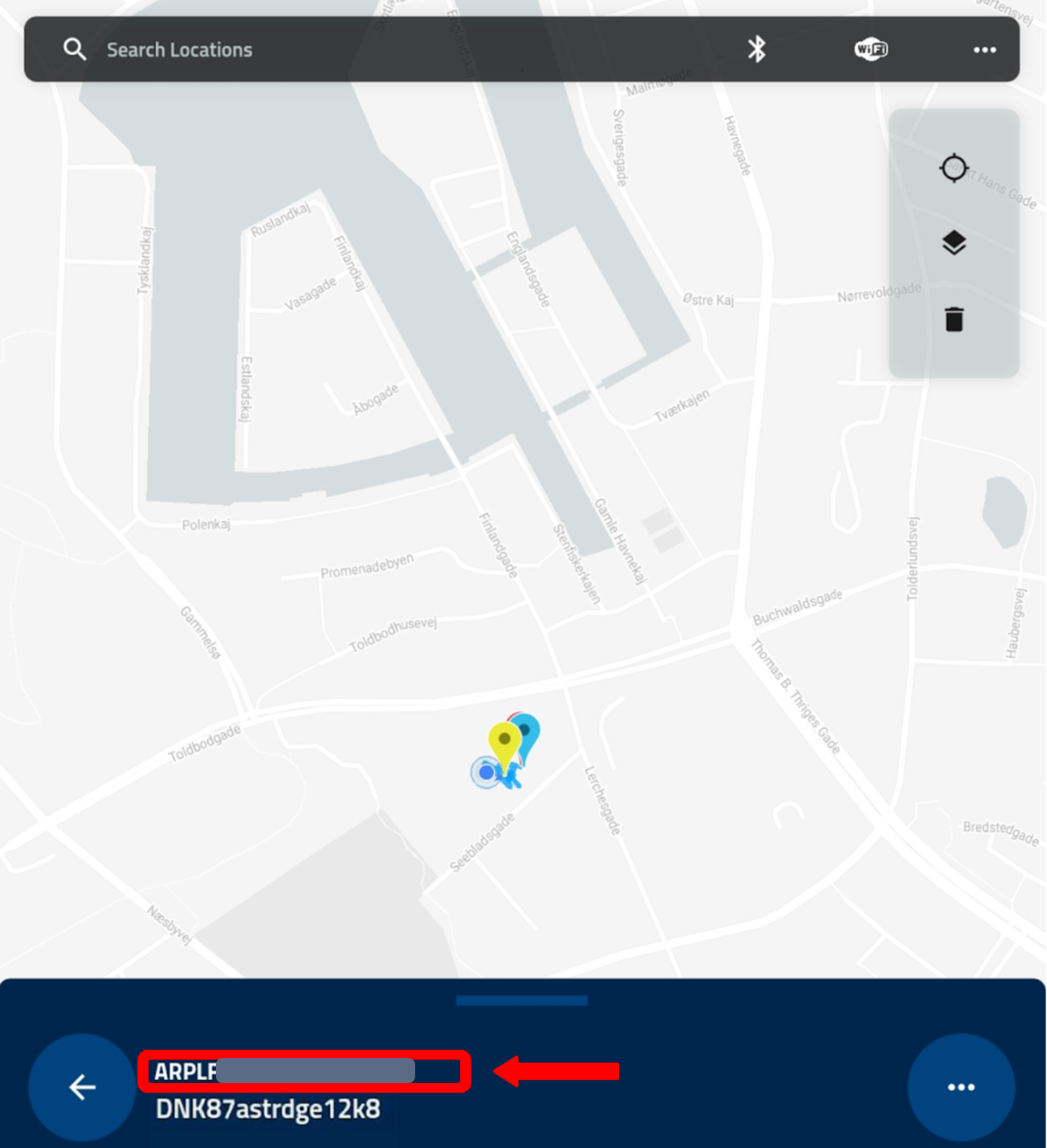
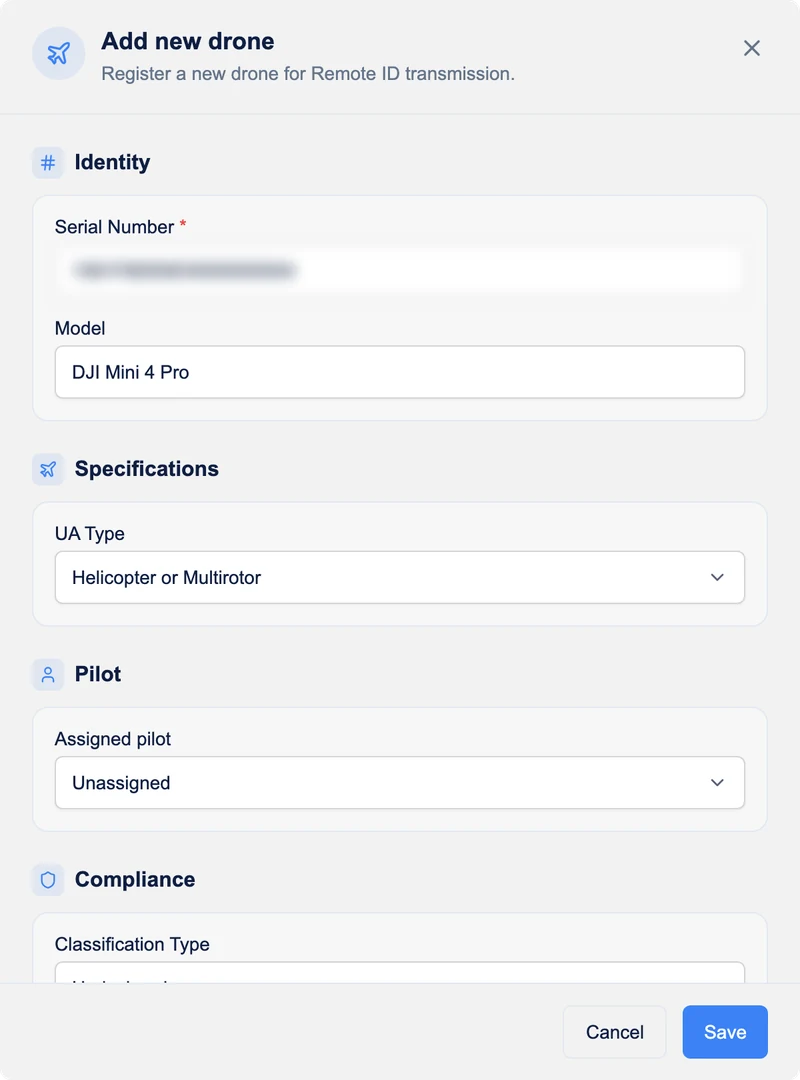
To fix this issue, first make sure your drone is added: open Remote ID Pro > Drones in the menu and press Add drone (see Drones). The Serial Number you write here is the same number that will be transmitted for Direct Remote Identification. Press Save when you are finished with adding information for your drone.
Afterwards open Remote ID Pro > Remote ID Pro Units and press the pencil on the Remote ID Pro you want to configure. In the Edit Airplate dialog, choose your drone in Drone Mapping > Serial Number. As shown in the picture:
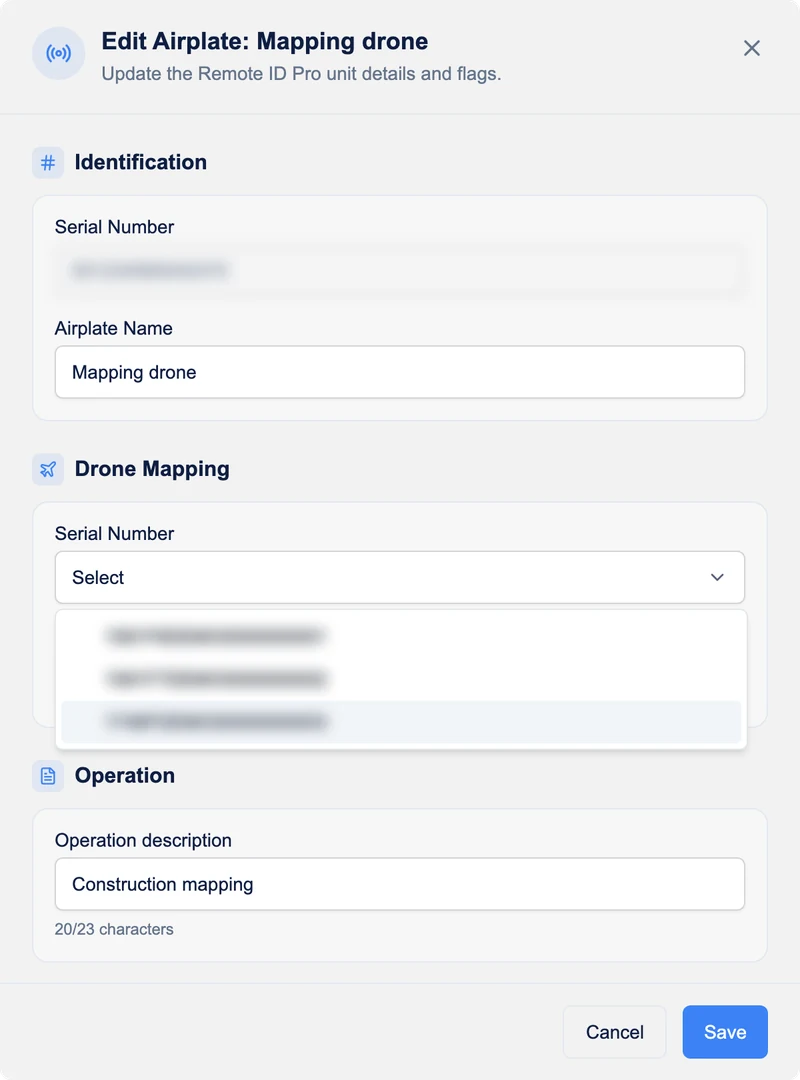
Choose the drone whose serial number the Remote ID Pro should transmit, press Save and restart the Remote ID Pro. Your Direct Remote Identification app now shows the drone’s serial number.
Remote ID Pro doesn’t turn on
Section titled “Remote ID Pro doesn’t turn on”Make sure the battery of your Remote ID Pro is fully charged (see Charging the Remote ID Pro). Turn it off and on again. If it still doesn’t turn on, contact support.
Can’t see my history
Section titled “Can’t see my history”Make sure your Remote ID Pro was visible on the map in the app during the flight (see Network Remote ID). In the Flight Log, check the selected dates. Otherwise, contact support.
I can’t log in
Section titled “I can’t log in”Use Forgot password? on the login page to set a new password. If you use two-factor authentication and have lost your phone, contact support.
My Remote ID Pro doesn’t appear in the dashboard
Section titled “My Remote ID Pro doesn’t appear in the dashboard”Make sure it is added to your account: it should be listed under Remote ID Pro > Remote ID Pro Units. A unit that is on and has a connection appears on the map; if it has no GPS position yet, it is shown at zero-island. Also check that Network Remote Identification is turned on for the unit (see Edit a Remote ID Pro). If the problem remains, contact support.