Flight Log
The Flight Log allows you to view all the flights recorded from the Remote ID Pro. The logging of a flight starts when a GPS-estimate is found by the Remote ID Pro.
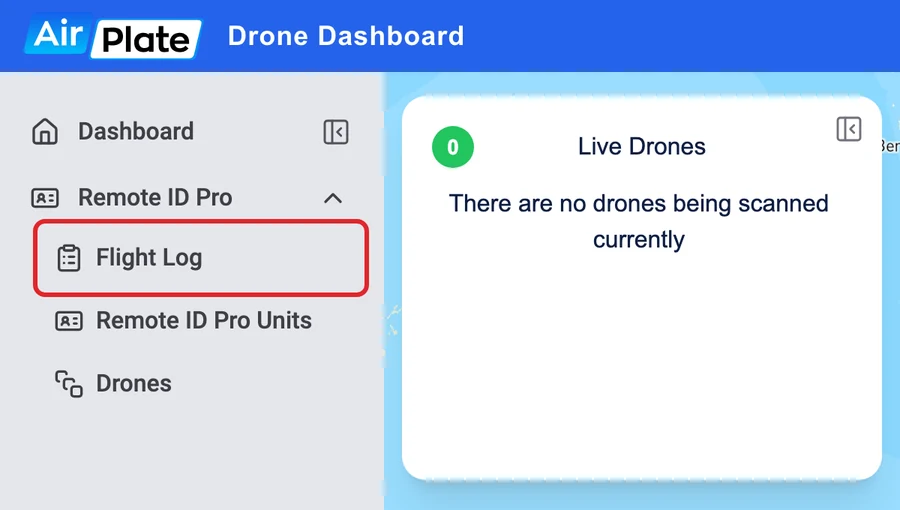
Open Flight Log under Remote ID Pro in the menu. The Flight Log is only shown in the menu if you have a Remote ID Pro registered to your organization.
Flight Log Table
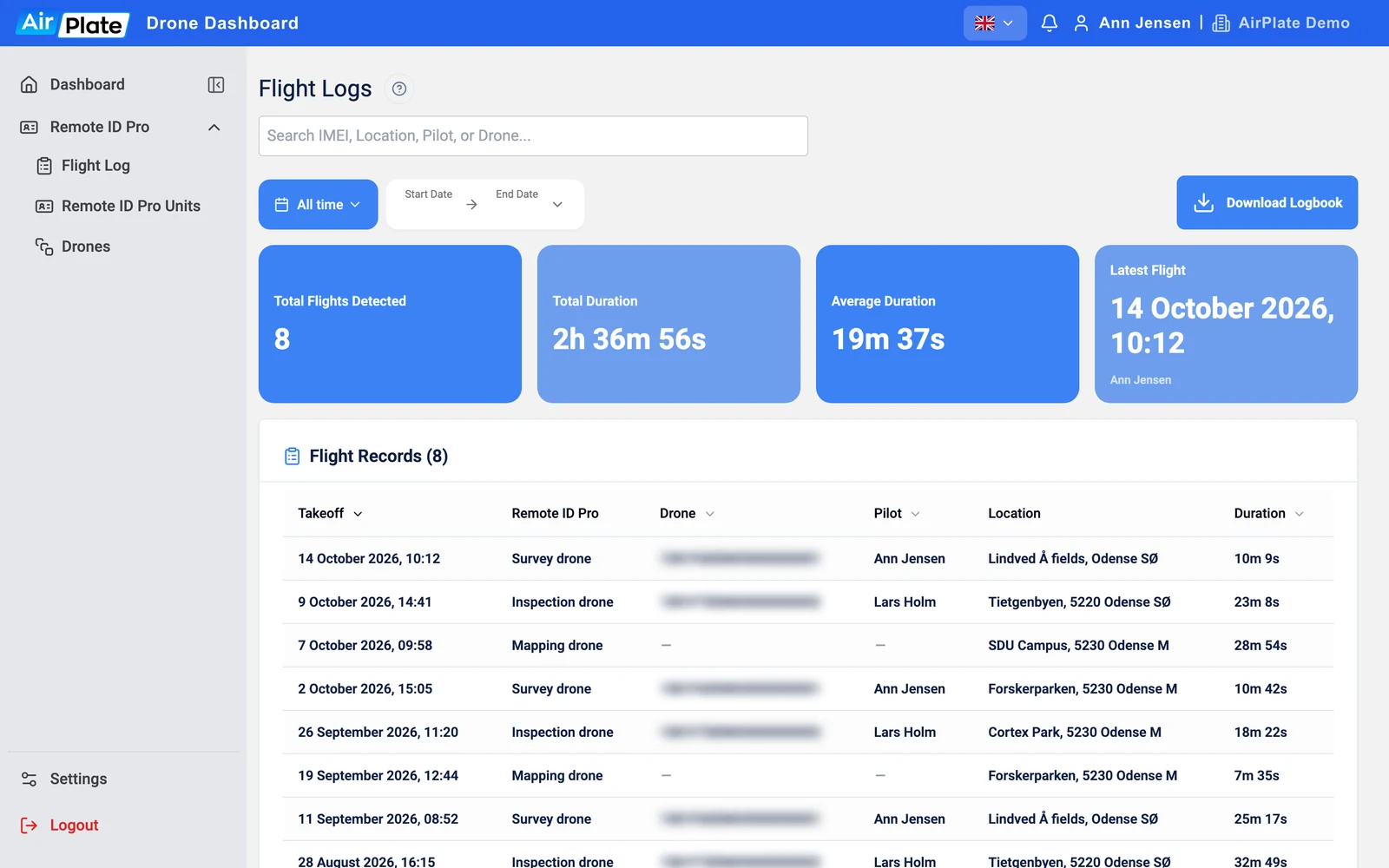
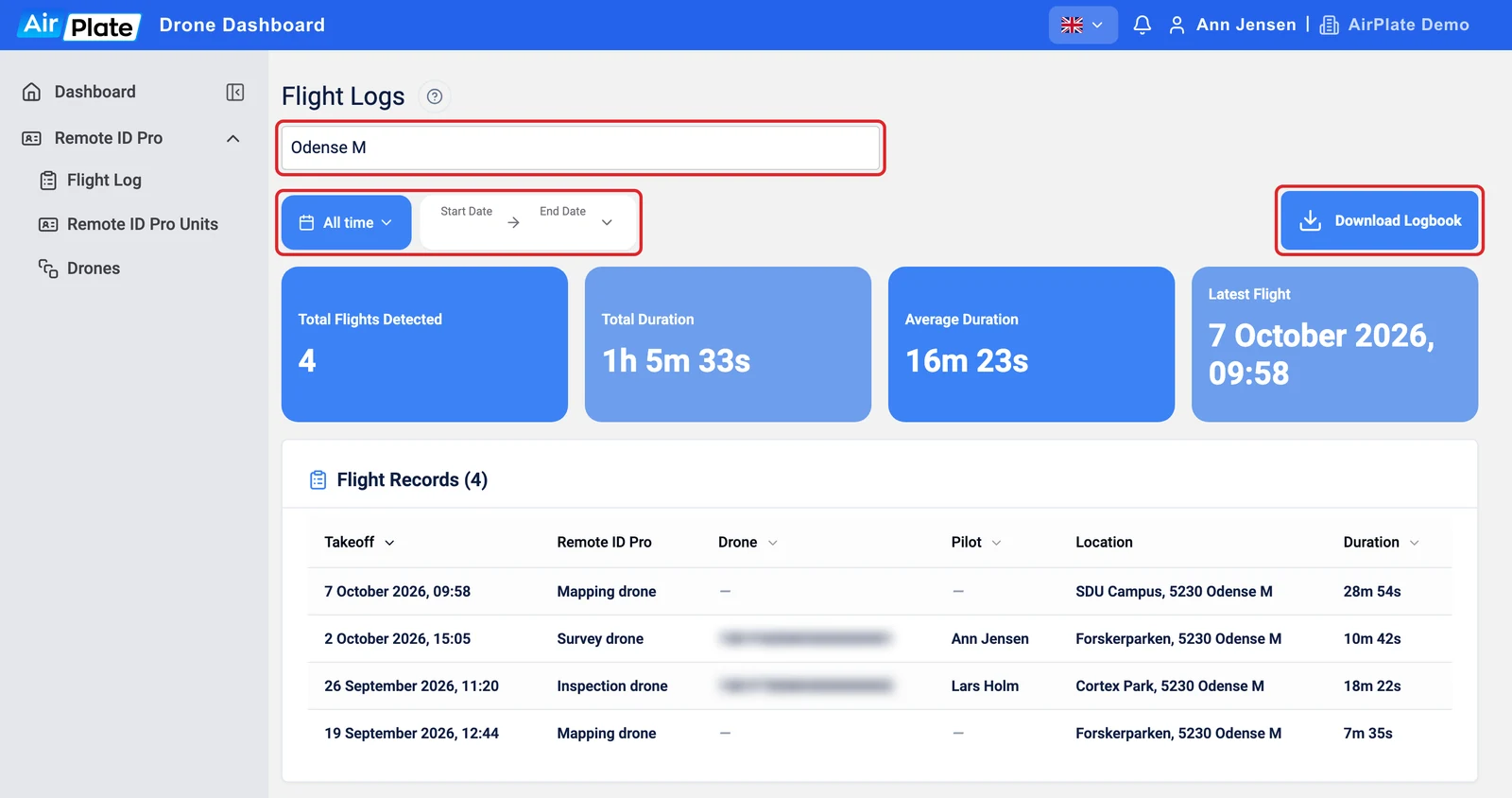
Section titled “Flight Log Table”At the top of the Flight Log, four tiles sum up the flights you are looking at: the number of flights, their total and average duration, and the latest flight. Below them, all recorded flights are listed in a table, one row per flight. Select a flight to view its flight path and more detailed information. The table contains the following columns:
- Takeoff: the take off date and time.
- Remote ID Pro
- If a name has been assigned to the Remote ID Pro, the name will be displayed, otherwise, the serial number will be shown. Assigning a name to the Remote ID Pro is described here.
- Drone: the drone’s serial number
- If a drone is registered and attached to the Remote ID Pro, it will be displayed in the flight log. Detailed instructions on how to register your drone can be found here.
- Pilot: the pilot’s name
- If a pilot has been assigned to the drone, the name of the pilot is displayed. Assigning a pilot to a drone is described here.
- Location: the starting location of the flight, which is the estimated address of the take off location.
- Duration of the flight.
Download Logbook
Section titled “Download Logbook”Press Download Logbook to download the logbook as a CSV file. The data will be organized in a table format, containing the following columns:
- Start date of the flight
- Stop date of the flight
- Airplate ID
- Airplate name
- Drone’s serial number
- Pilot’s name
- Starting location of the flight
- Maximum height reached
- Flight duration
The file contains the flights shown in the table, so you can choose which flights to download with the search box (it searches the serial number of the Remote ID Pro, the location, the pilot and the drone) and the date range: pick a period such as Latest 7 days or All time, or choose a start and end date. Both are highlighted in the image below.
Detailed Flight Information
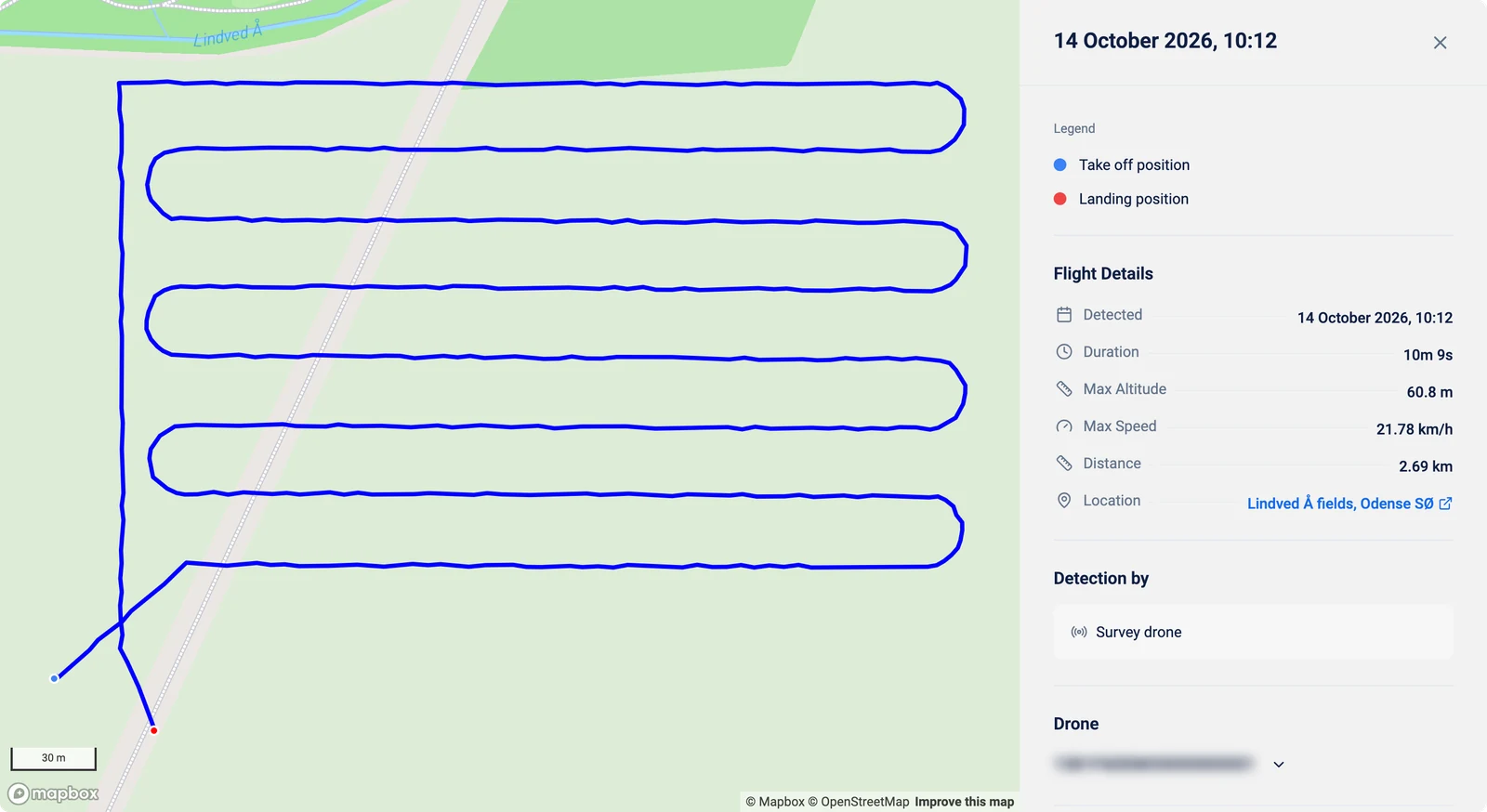
Section titled “Detailed Flight Information”Select a flight in the table to open its details. You see the flight path of the Remote ID Pro plotted on a map along with the take off (Blue dot) and landing locations (Red dot). In addition, you can also see maximum altitude achieved, maximum speed, total distance traveled and the location of the flight. If a pilot has been assigned to the drone, the pilot’s drone certificate ID will be displayed if it is registered for the user (see Edit a user). You can also change which drone and pilot the flight is registered to, straight from this view.
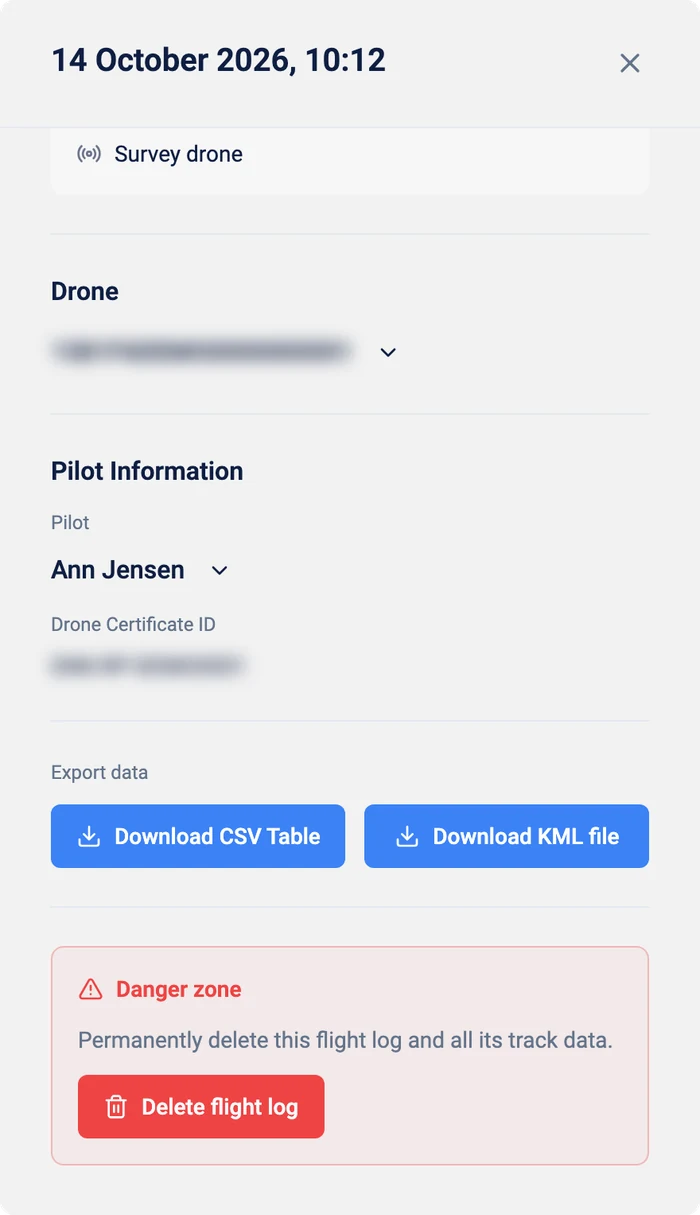
Under Export data you can download the flight:
- Download CSV Table: every position of the flight in a table, with the time, latitude, longitude, altitude, speed and the mobile network signal.
- Download KML file: the flight path of the Remote ID Pro, which can be imported into tools such as Google Earth. The file contains the positional data for each coordinate, including:
- Latitude
- Longitude
- Altitude
- Time stamp
You can also delete a flight with Delete flight log, under Danger zone. You are asked to confirm first. A deleted flight log can not be restored.
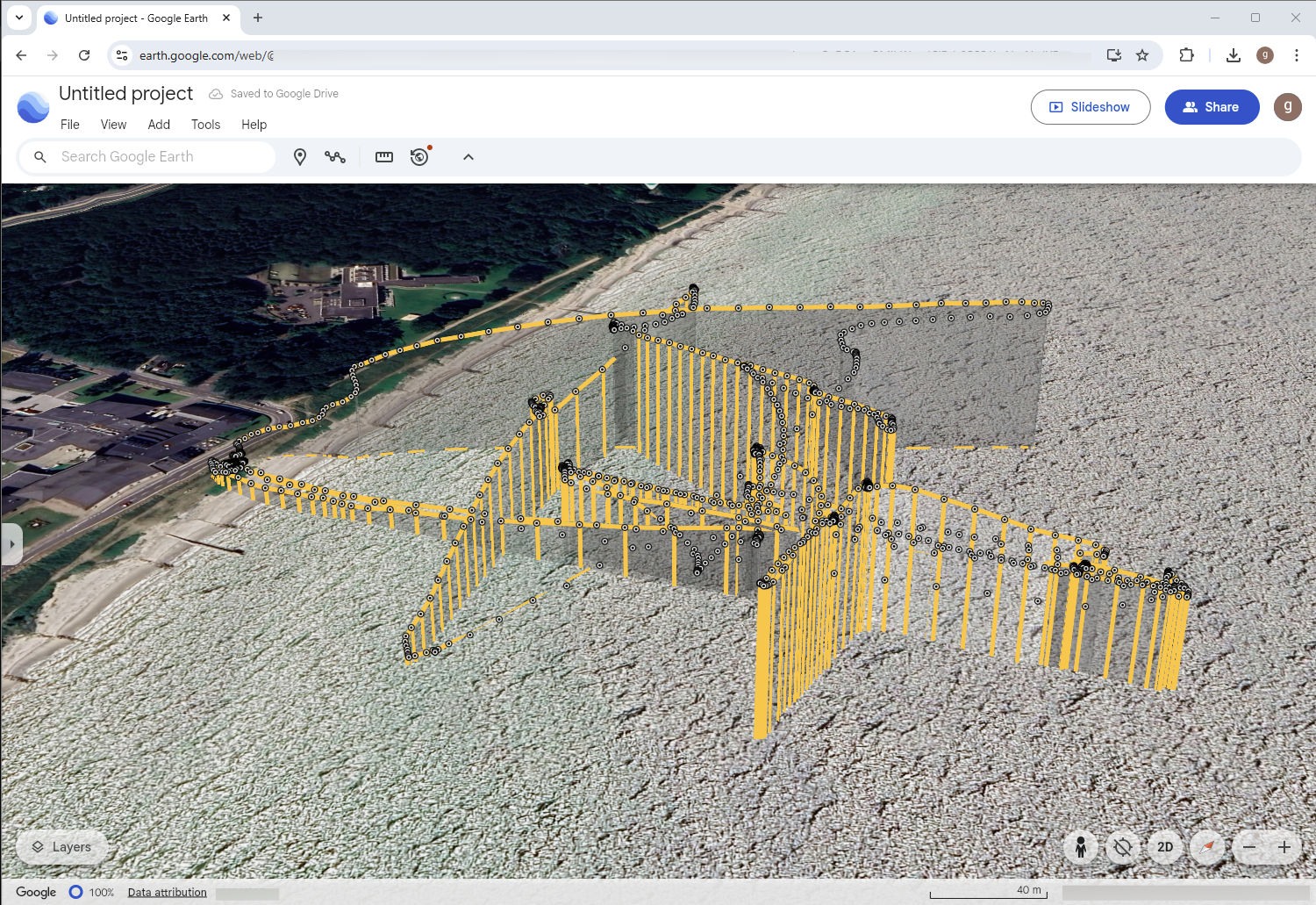
Flight path imported to Google Earth
Section titled “Flight path imported to Google Earth”By downloading the KML-file you can import it to Google Earth for more detailed viewing.