Setup your Remote ID Pro
Adding your Remote ID Pro to your AirPlate account takes a couple of minutes: open the add page, enter the serial number, then log in or create an account. The Remote ID Pro is then added to your account automatically.
Step 1: Open the add page
Section titled “Step 1: Open the add page”There are three ways to get there.
Scan the QR code (recommended)
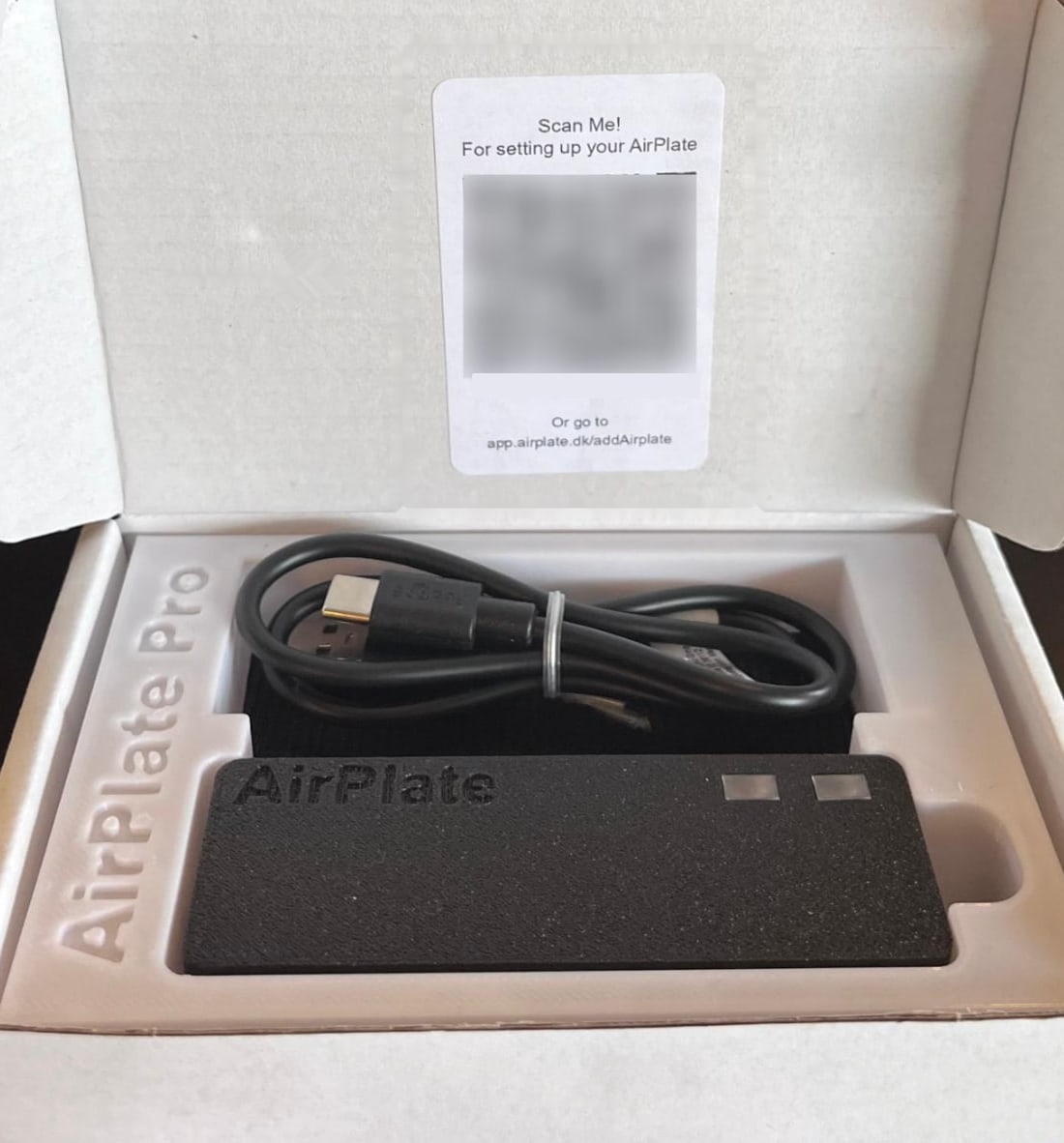
Section titled “Scan the QR code (recommended)”You will find the QR code inside the lid when you open the box. Scan it with your mobile phone: the add page opens with your Remote ID Pro’s serial number already filled in, so it is added to your account as soon as you log in or sign up. The QR code is unique for every Remote ID Pro.
From airplate.dk
Section titled “From airplate.dk”At the top of airplate.dk, click the round + next to Login.
Go directly to the URL
Section titled “Go directly to the URL”Open https://app.airplate.dk/addAirplate in your browser.
Step 2: Enter the serial number
Section titled “Step 2: Enter the serial number”If you scanned the QR code, the serial number is already filled in. Otherwise, type it in.
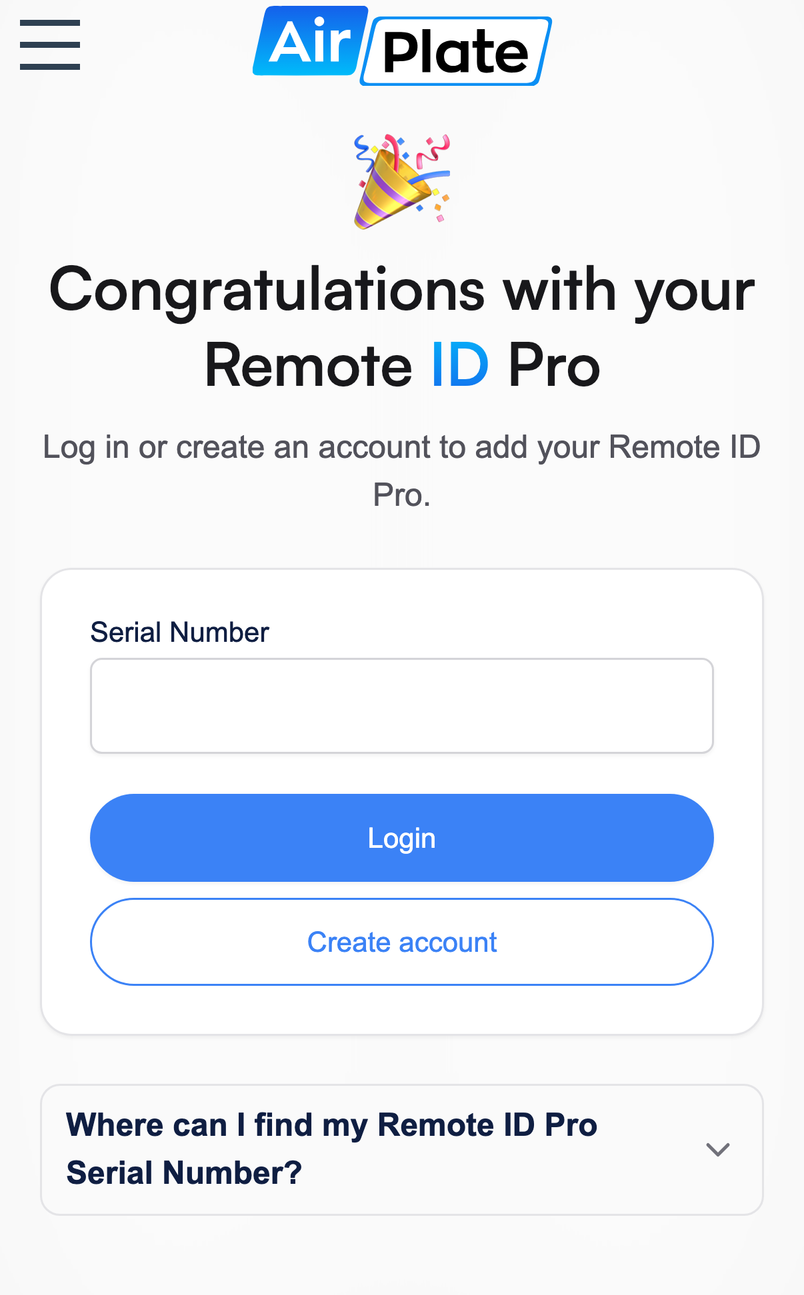
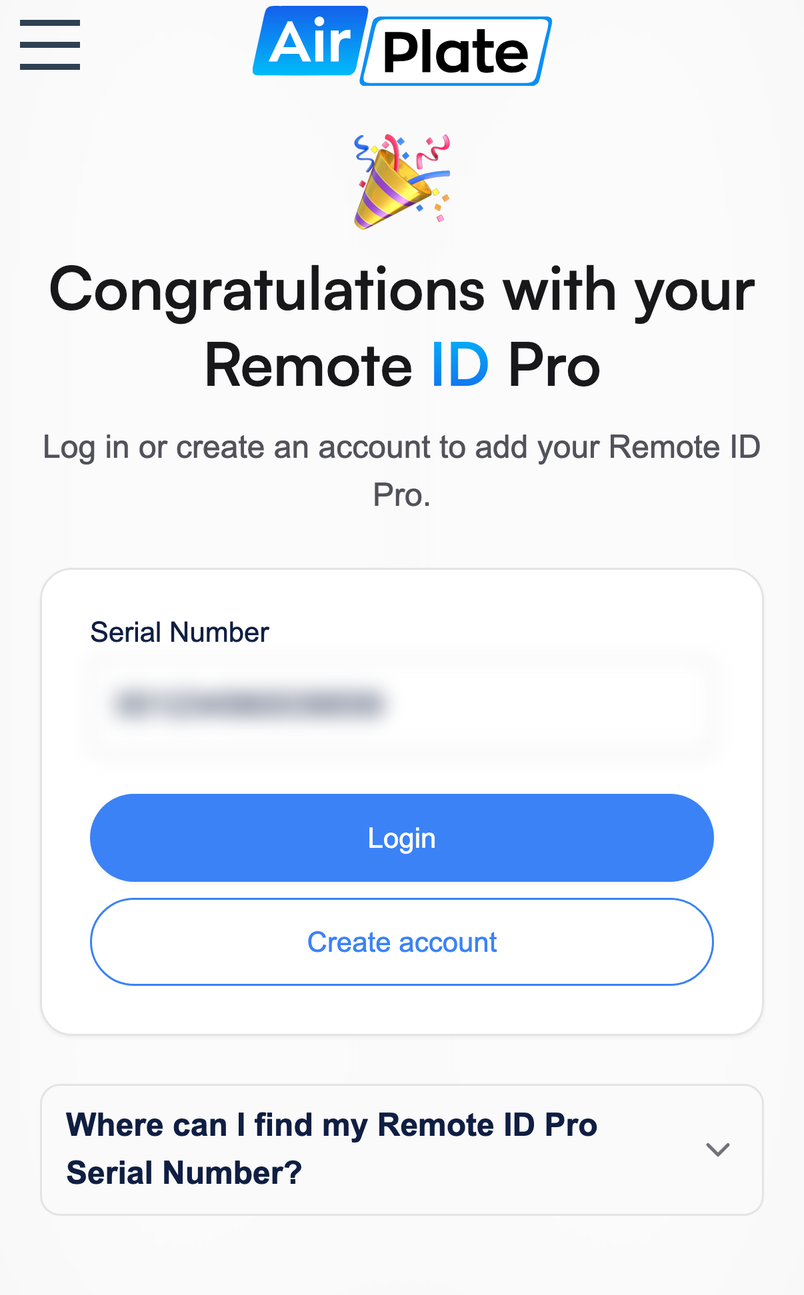
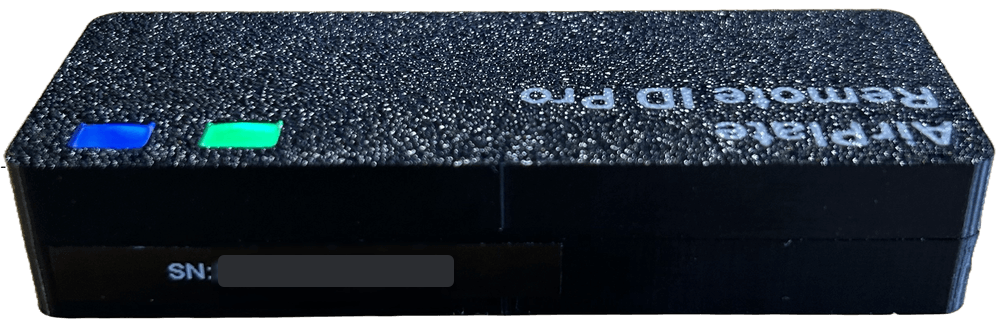
The serial number is printed next to the QR code inside the box, and on the side of the Remote ID Pro:
Then press Login if you already have an AirPlate account, or Create account if you don’t.
Step 3: Log in or create an account
Section titled “Step 3: Log in or create an account”Log in
Section titled “Log in”Enter your email and password. Once you are logged in, your Remote ID Pro is added to your account automatically: there is nothing else to press.
- If you use two-factor authentication, enter your code when asked. The Remote ID Pro is still added afterwards.
- If your account belongs to more than one organization, you are first asked which organization to add the Remote ID Pro to.
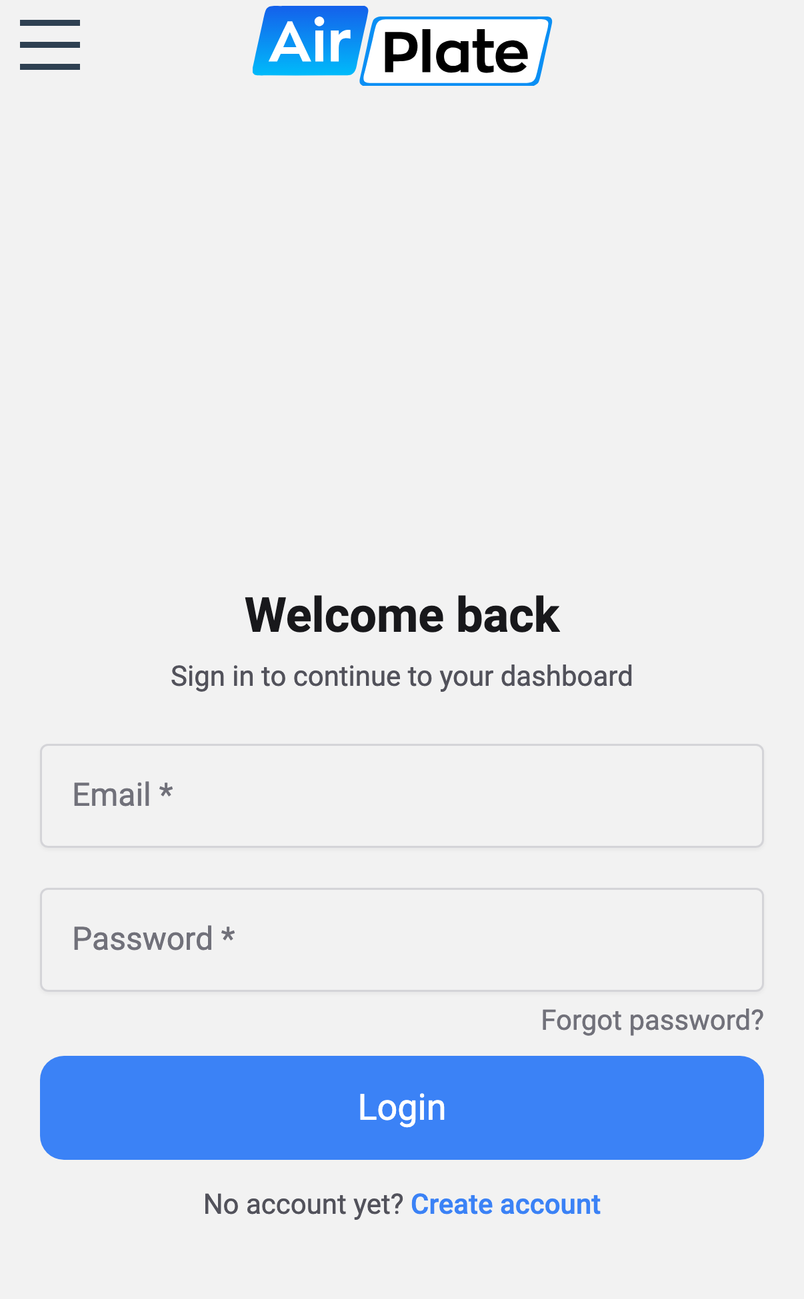
Create account
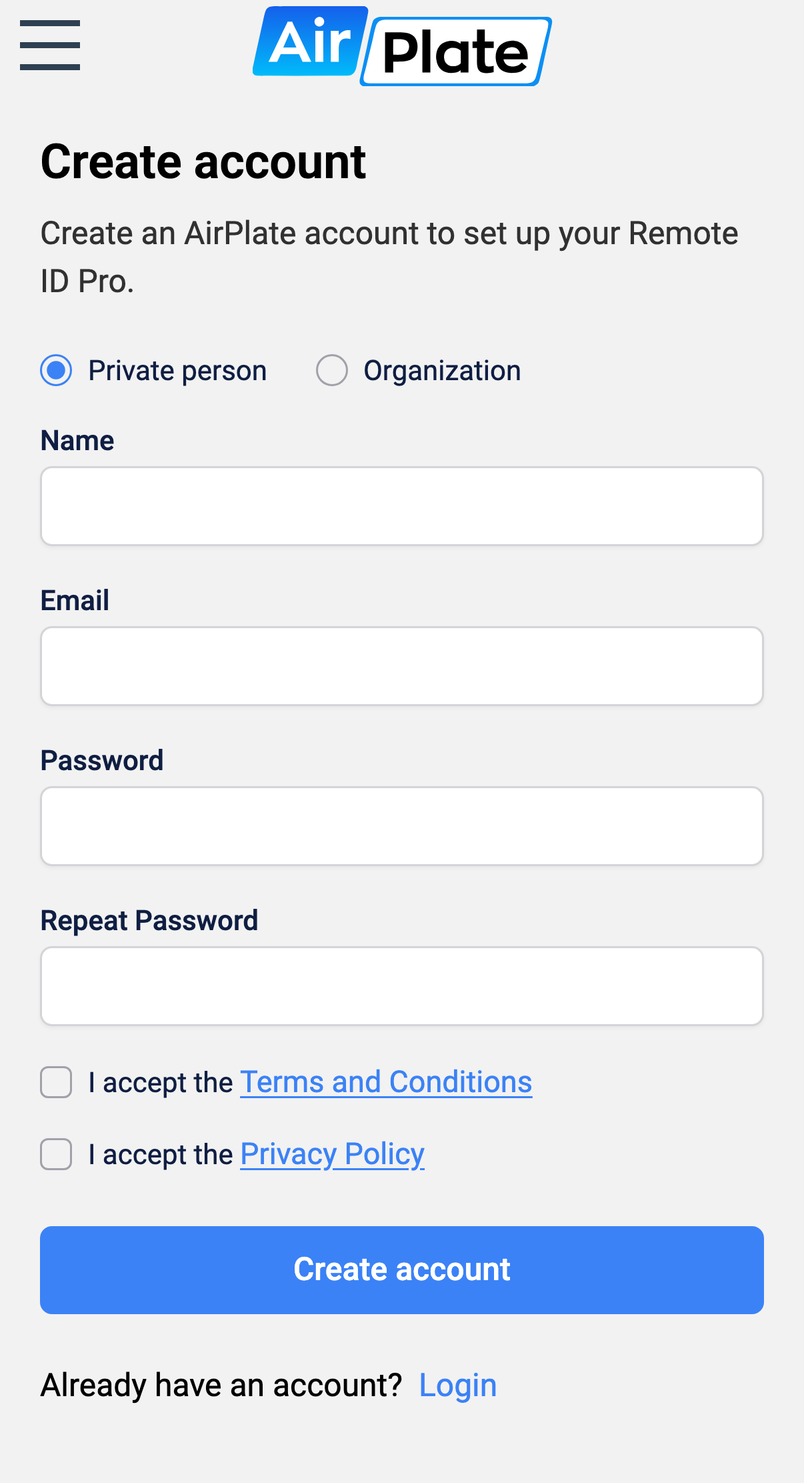
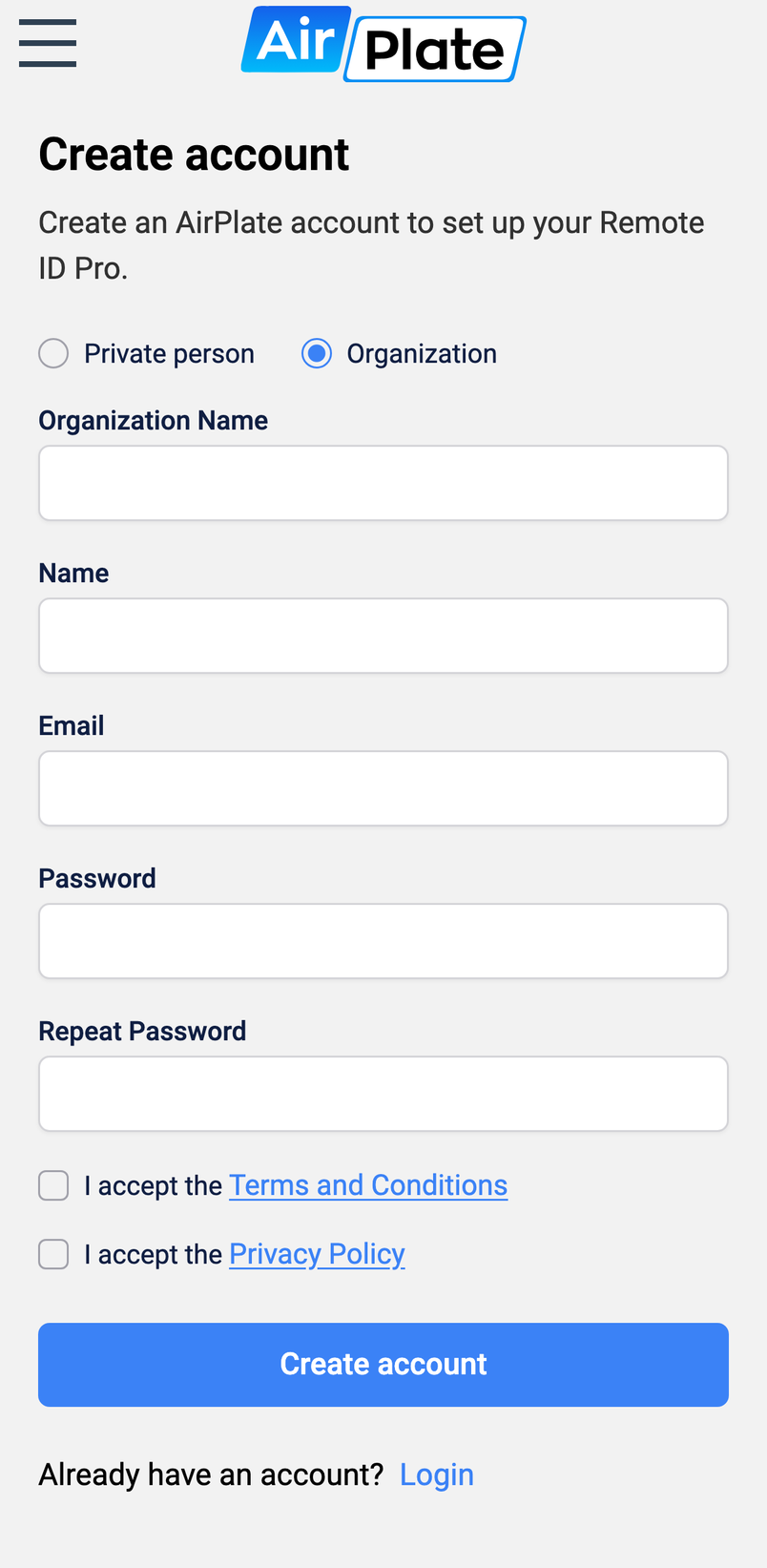
Section titled “Create account”Choose whether you are signing up as a Private person or as a representative of an Organization; an organization also needs an Organization Name. Fill in the rest, accept the Terms and Conditions and the Privacy Policy, and press Create account.
Add your Drone Operator ID
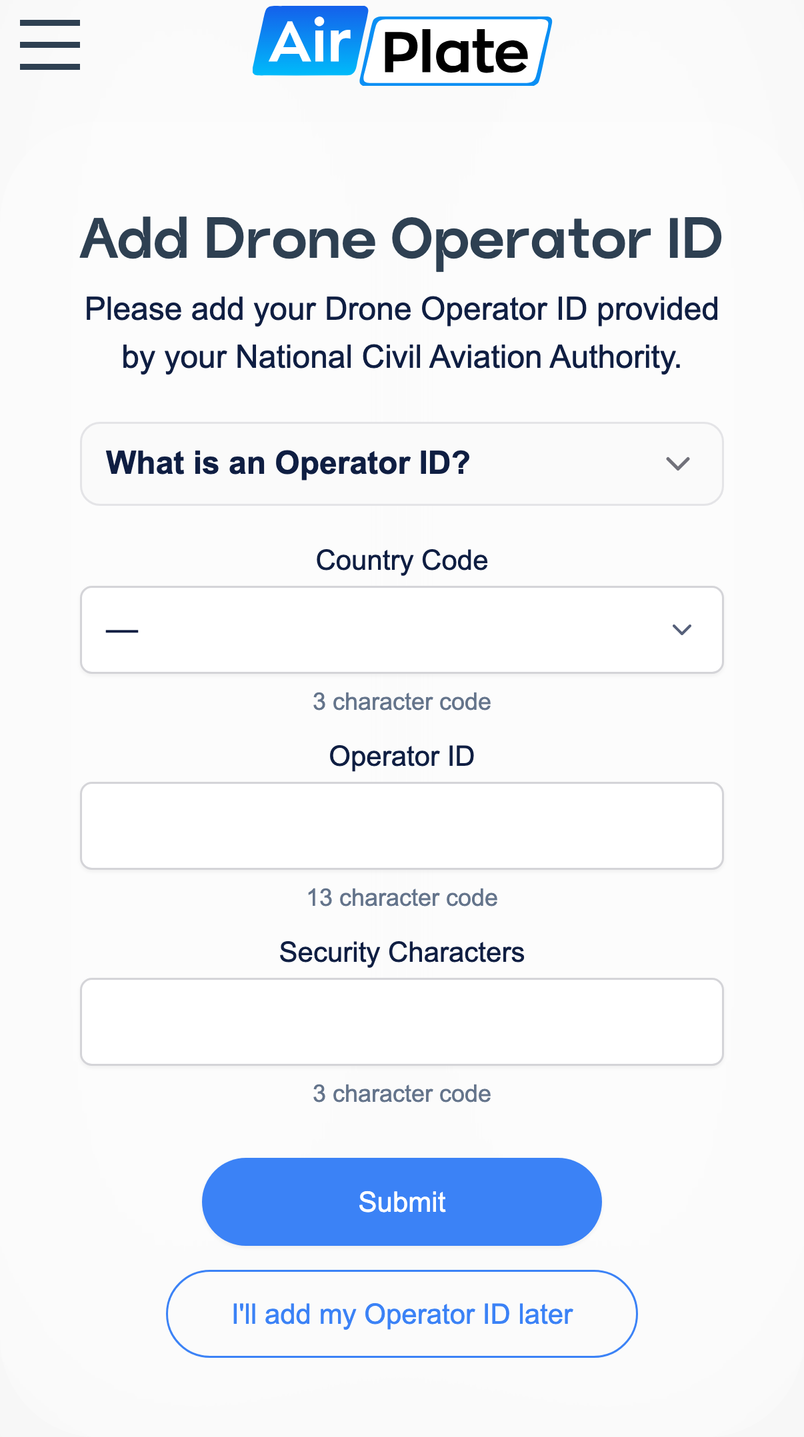
Section titled “Add your Drone Operator ID”Right after you create your account, you are asked for your Drone Operator ID: the Country Code, the Operator ID and the Security Characters. Press Submit, or I’ll add my Operator ID later if you don’t have it at hand. Either way, your Remote ID Pro is then added to your account.
What is an Operator ID?
A drone operator is any person, or organisation, who owns or rents one or more registered drones. You need to take the initiative yourself to register with your National Aviation Authority, in your country of residence or main place of business. For more information visit: EASA - Drone Operators & Pilots
You will receive a document looking similar to the one below, with the registration number (Operator ID) and security code (Security characters).
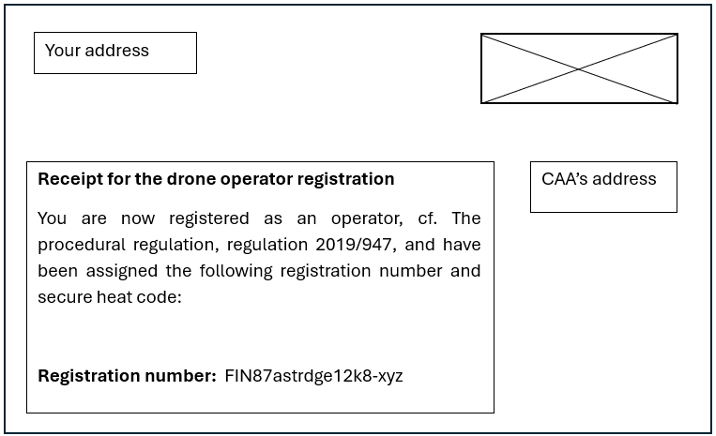
In the example, you can see that the first 3 capitalized letters are the country code, followed by 13 alphanumeric lower-case characters that make up the operator ID, a hyphen (-) and lastly another 3 lower-case alphanumeric characters which are the security characters.
- FIN: 3 upper case letters is the country code
- 87astrdge12k8: 13 alphanumeric characters (lower cases only), constitute the operator identifying number.
- xyz: 3 alphanumeric characters (lower cases only), which are the security characters
Already logged in?
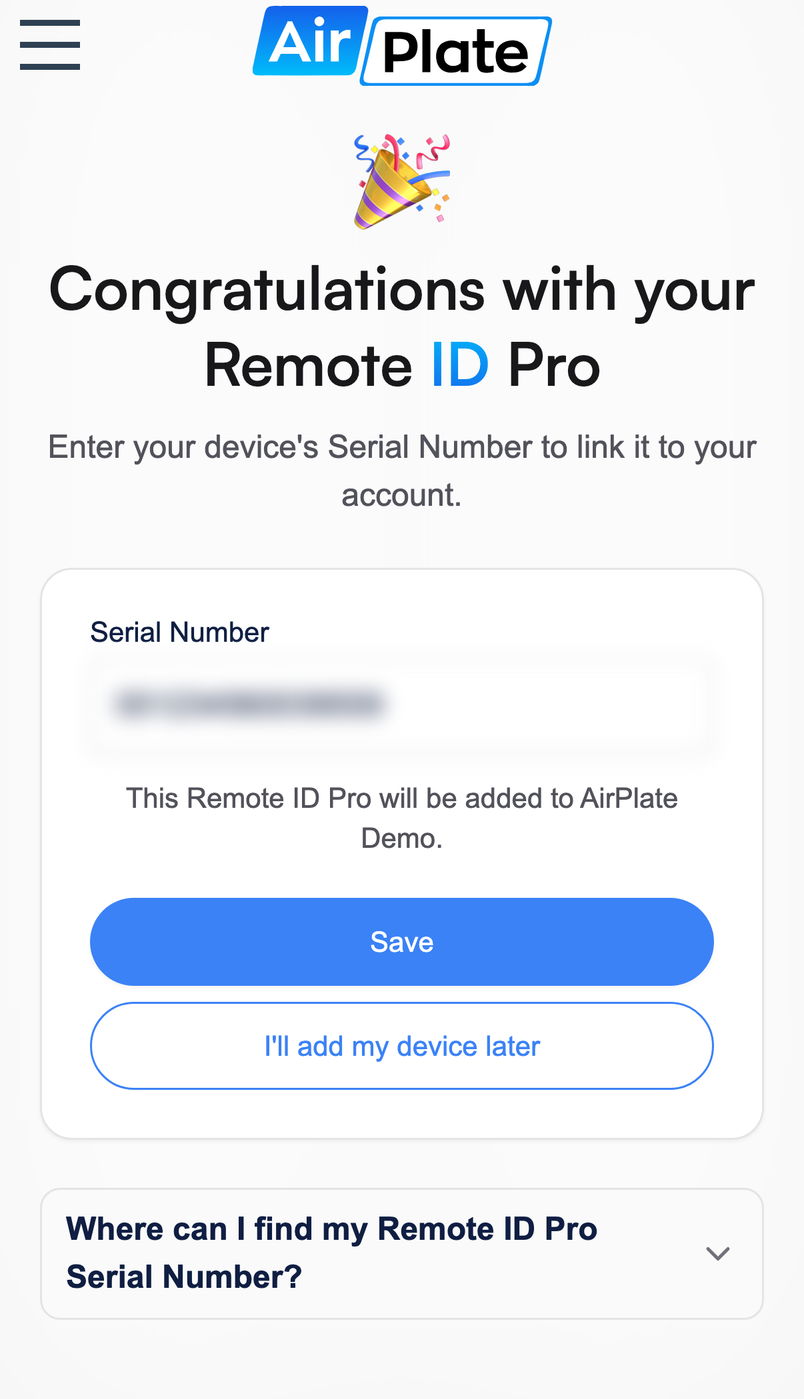
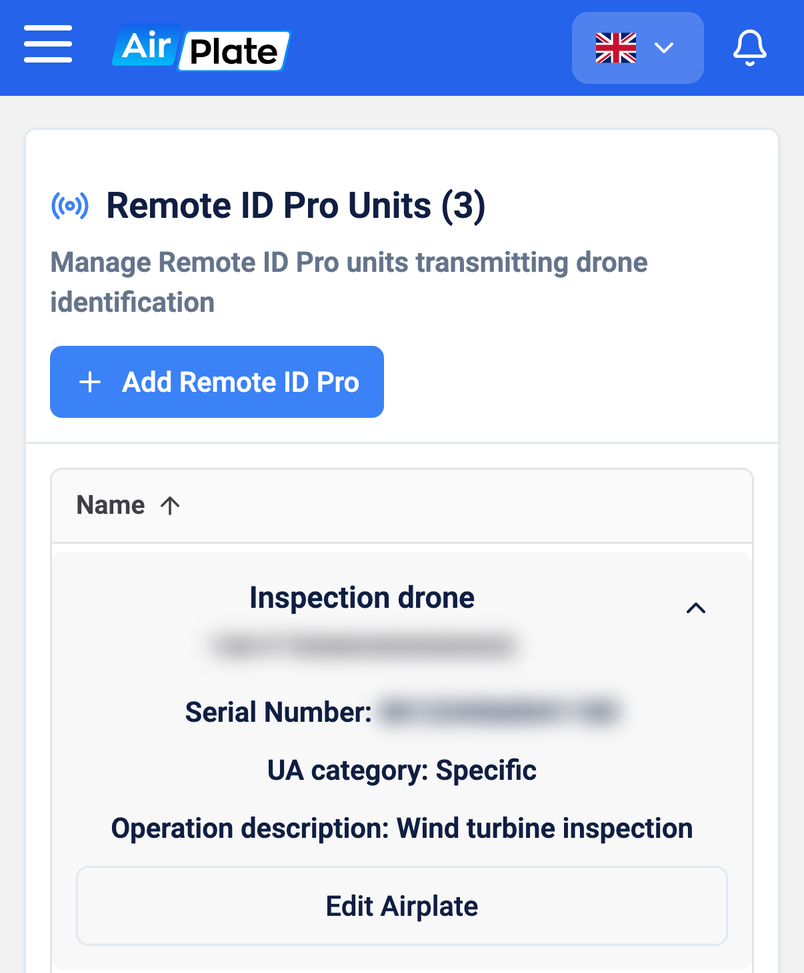
Section titled “Already logged in?”If you are already logged in, the add page only asks for the serial number: enter it and press Save. You can also start from your list of Remote ID Pro units with + Add Remote ID Pro.
Step 4: Done!
Section titled “Step 4: Done!”You have successfully linked your Remote ID Pro to your account 🎉 The app confirms which account or organization it was added to: