Configure your Remote ID Pro and dashboard access
Log in at app.airplate.dk/login with your email and password, or click Login at the top of airplate.dk. If you have forgotten your password, use Forgot password? on the login page.
Dashboard overview
Section titled “Dashboard overview”After you log in, you land on the dashboard: a map with your Remote ID Pro units.
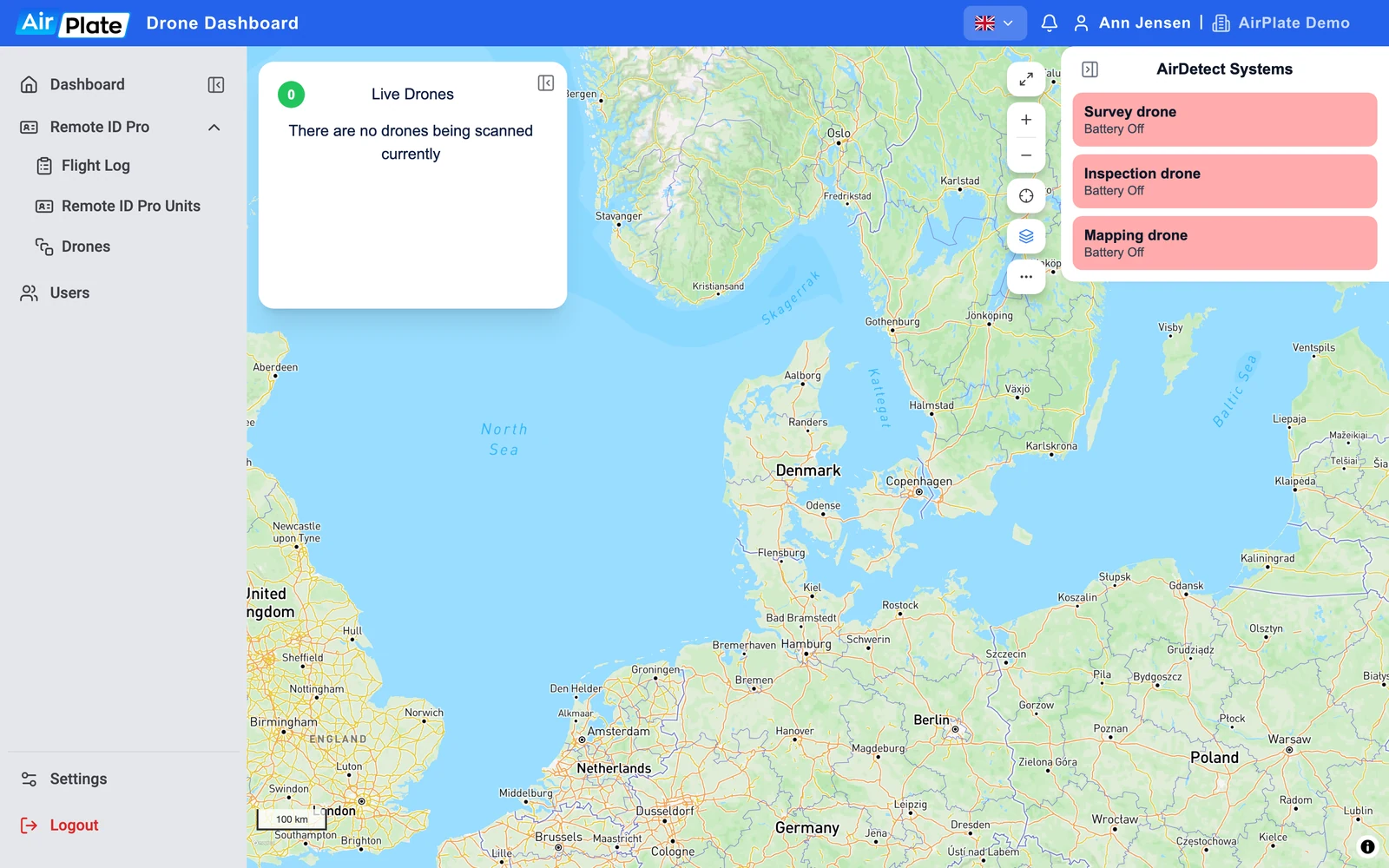
- Menu
Dashboard, Remote ID Pro, Users and Settings - Live Drones
Drones seen by AirDetect sensors (Drone Detection) - Map controls
Full screen, zoom, your position, zone overlays and map style - AirDetect Systems
Your Remote ID Pro units, by name
Under Remote ID Pro in the menu you will find the Flight Log, your Remote ID Pro Units and your Drones. Settings and Logout are at the bottom of the menu.
The panel on the right lists your Remote ID Pro units by name. It does not show their live battery or GPS status: to see that a unit is transmitting, find it on the map (see Network Remote ID).
Click a coloured zone on the map to see what applies there. You can turn zone overlays on and off with the layers button, or under Settings > Drone Zones.
Your name and organization are shown in the top bar. If you are a member of more than one organization, click the organization name to switch between them.
Operator ID
Section titled “Operator ID”Your Drone Operator ID is transmitted by the Remote ID Pro. Without it, the Operator ID field of your Remote ID transmission is empty.
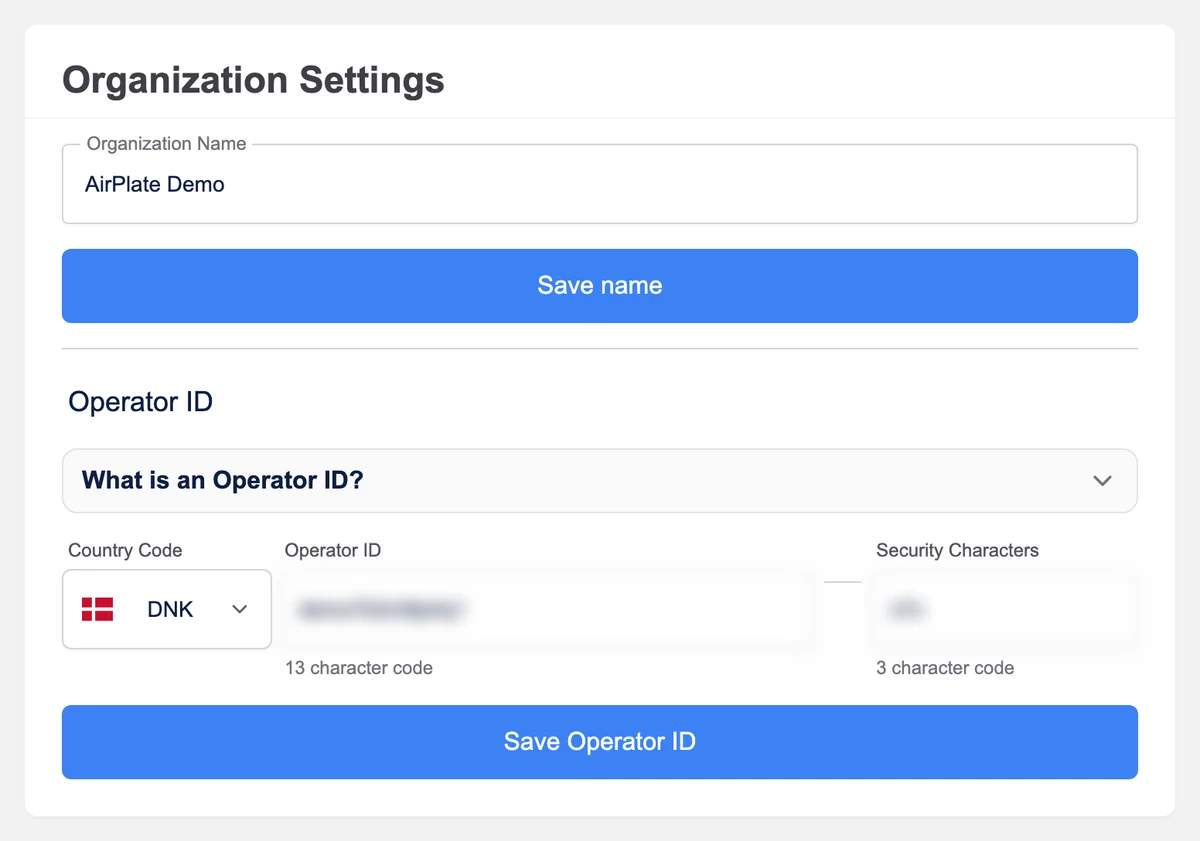
Open Settings at the bottom of the menu. Under Organization Settings > Operator ID, enter the Country Code, the Operator ID and the Security Characters, then press Save Operator ID.
“A drone operator is any person, or organisation, who owns or rents one or more registered drones. You need to take the initiative yourself to register with your National Aviation Authority, in your country of residence or main place of business.” Drone operators & pilots | EASA (europa.eu).
You will receive a document looking similar to the one below, with the registration number (Operator ID) and security code (Security characters).
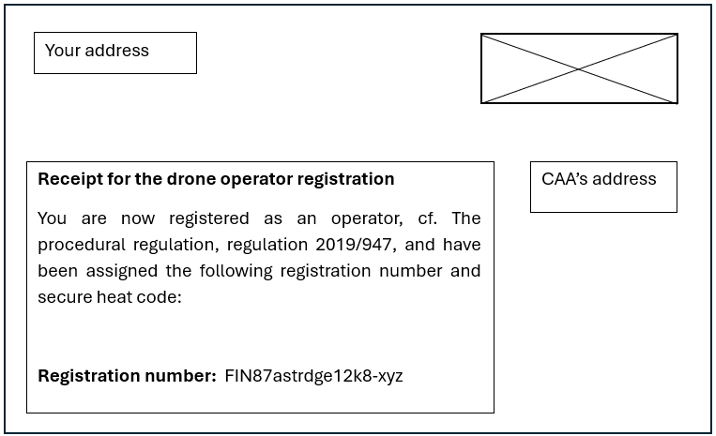
In the previous example, you can see that the first 3 capitalised letters are the country code, followed by 13 alphanumeric lower-case characters that make up the operator ID, a hyphen (-) and lastly another 3 lower-case alphanumeric characters which are the security characters.
- FIN: 3 upper case letters is the country code;
- 87astrdge12k8: 13 alphanumeric characters (lower cases only), constitute the operator identifying number;
- xyz: 3 alphanumeric characters (lower cases only), which are the security characters.
Settings also holds your map style, which zones the map shows, notifications, the language, and two-factor authentication. To change your password, use Forgot password? on the login page.
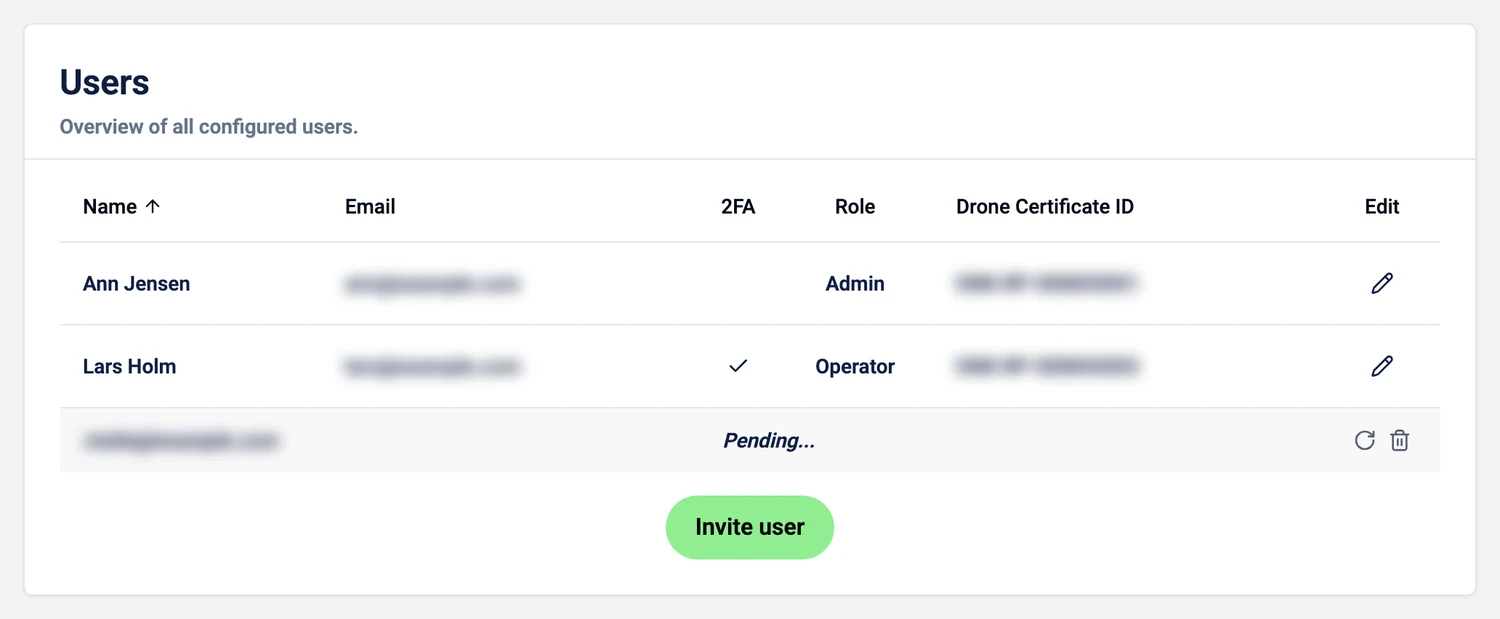
Users in the menu lists everyone in your organization, with their role, whether they use two-factor authentication (2FA), and their drone certificate ID.
Invite a user
Section titled “Invite a user”Press Invite user, enter the person’s Name and Email, choose a Role and press Send. They receive an email invitation and choose their own password. Until they accept, they are listed as Pending…, with buttons to resend or delete the invitation.
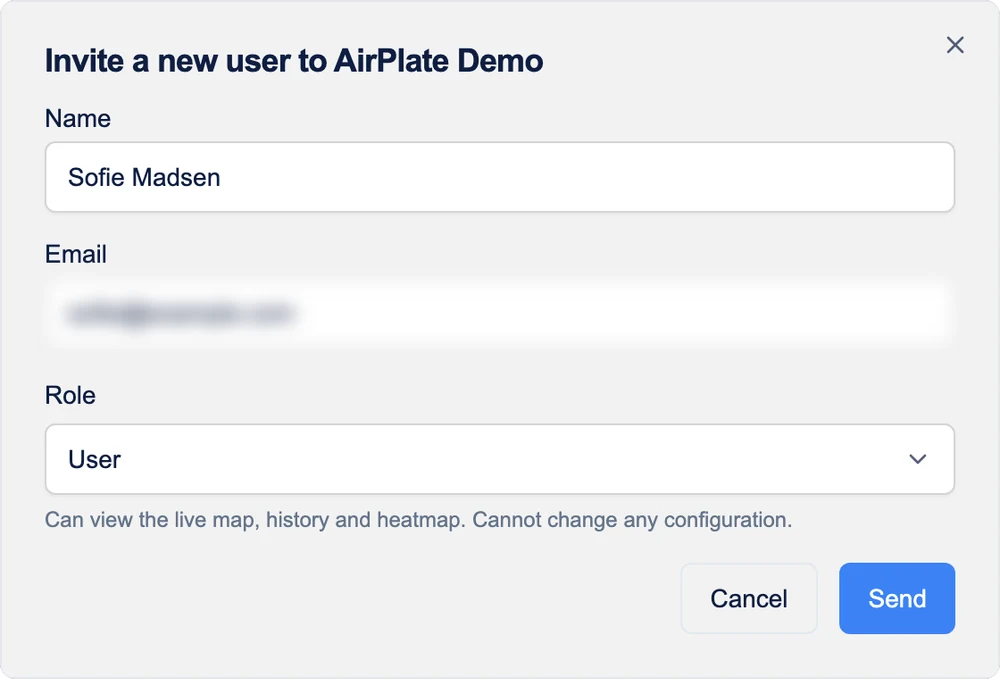
The role decides what the user can do:
- User: can view the live map, history and heatmap, but cannot change any configuration.
- Operator: can also configure your Remote ID Pro units and drones (and, with Drone Detection, zones, alerts and sensors), but cannot manage users.
- Admin: everything an Operator can do, plus inviting, editing and removing users.
Edit a user
Section titled “Edit a user”Press the pencil on a user’s row to edit them, for example to add their Drone certificate ID: the licence to fly that you get from your aviation authority. For more information please visit: EASA - Drone Operators & Pilots. The same dialog has Delete User.
Every user can be the pilot of a drone (see Drones).
Drones
Section titled “Drones”Add your drones so that a Remote ID Pro can transmit the drone’s serial number instead of its own.
Open Remote ID Pro > Drones in the menu and press Add drone.
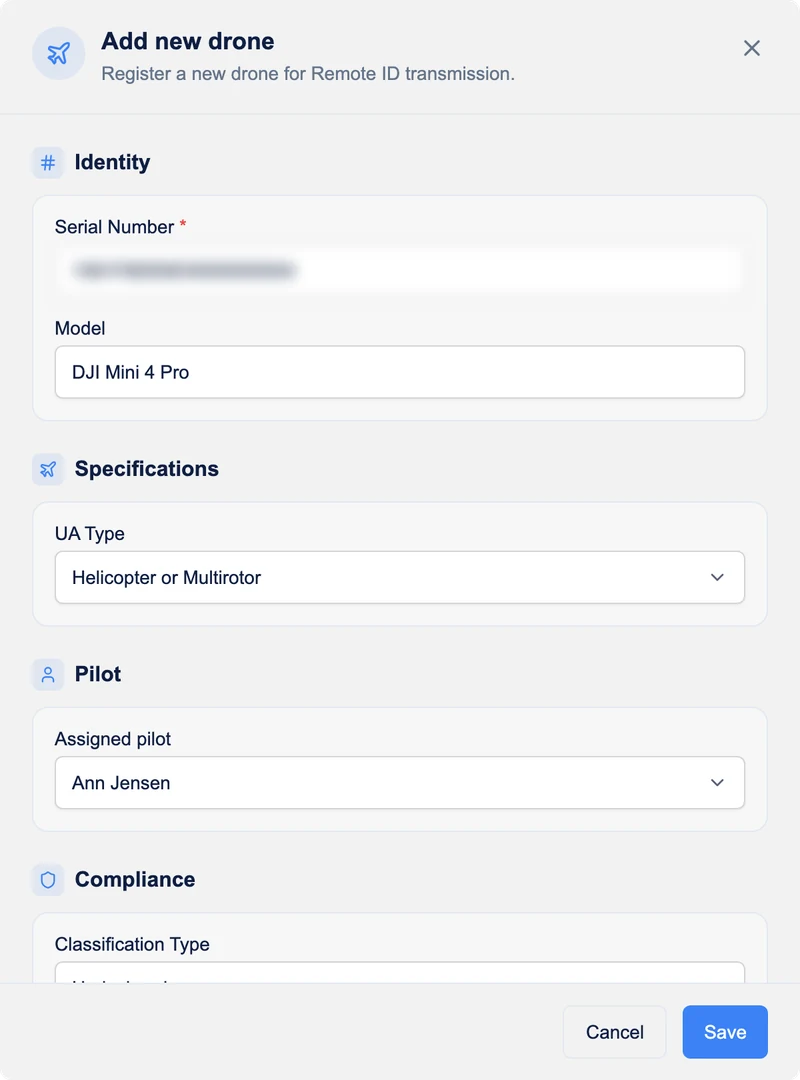
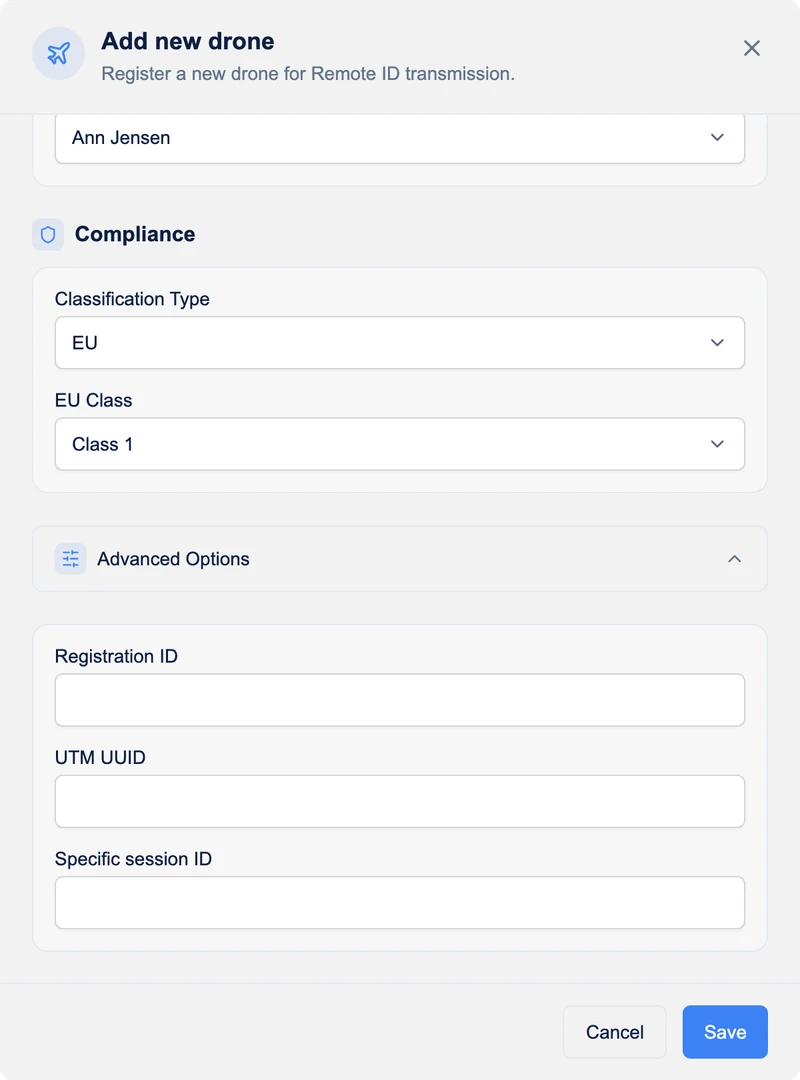
Fill in:
- Serial Number:* the number provided by the manufacturer of your drone. This is the serial number the Remote ID Pro transmits once the drone is attached to it.
- Model: the model of your drone.
- UA Type: the type of aircraft, following the ICAO type list.
- Assigned pilot: one of the users in your organization.
- Classification Type and EU Class: whether the drone has a class in the EU, and which (Class 0 to 6).
- Advanced Options: other ID numbers, if you have them:
- Registration ID: “CAA assigned registration ID”;
- UTM UUID: “unmanned aircraft system traffic management assigned universal unique identification”;
- Specific session ID: provided by civil aviation authorities.
Press Save. On the Drones page, the pencil on a drone’s row edits it and the bin deletes it.
Remote ID Pro Units
Section titled “Remote ID Pro Units”Remote ID Pro > Remote ID Pro Units lists your units with their serial number, name, the drone they are attached to, UA category and operation description.
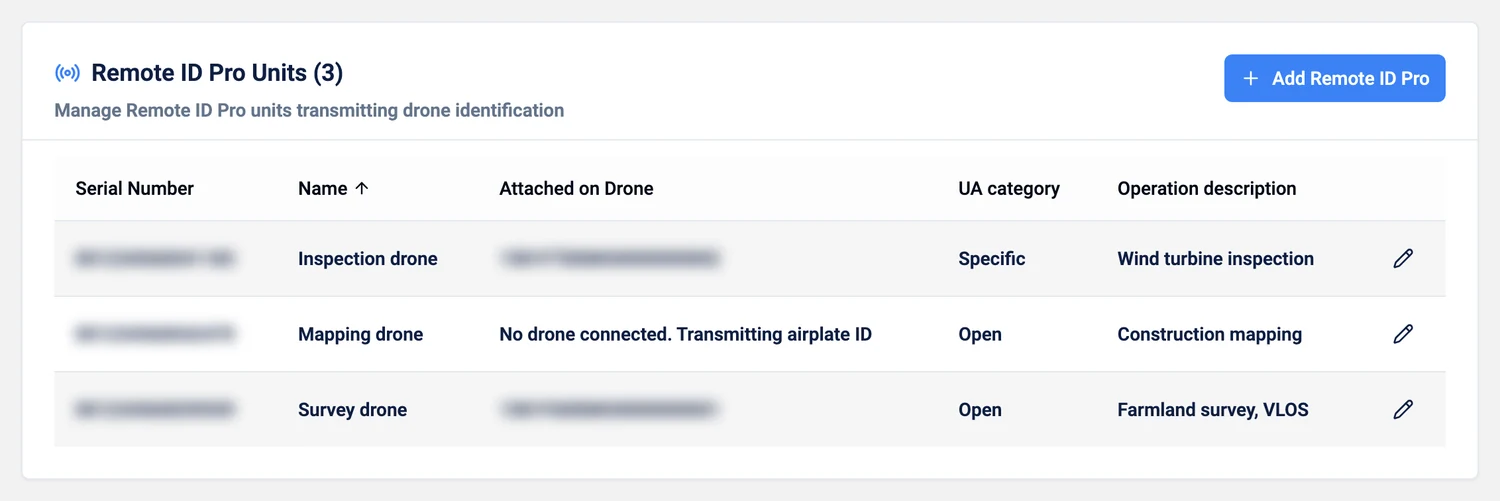
To add a unit, press Add Remote ID Pro and enter its serial number: see Setup your Remote ID Pro.
Edit a Remote ID Pro
Section titled “Edit a Remote ID Pro”Press the pencil on a unit’s row. The dialog is called Edit Airplate.
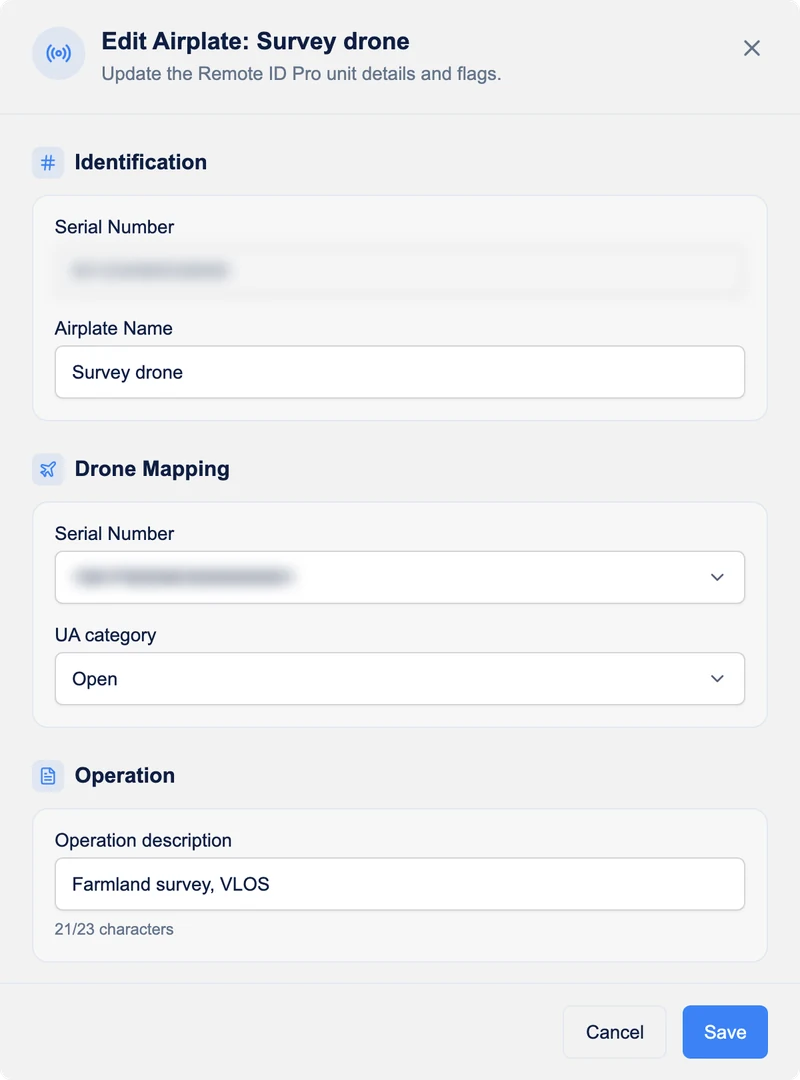
- Serial Number: the Remote ID Pro’s own serial number. It cannot be changed.
- Airplate Name: a name of your choice. It is shown on the dashboard and in the Flight Log.
- Drone Mapping > Serial Number: the drone this Remote ID Pro is attached to, chosen from the drones you added under Drones. Without a drone, the Remote ID Pro transmits its own serial number (the list then says No drone connected. Transmitting airplate ID).
- UA category describes which category your drone fits in: Open, Specific or Certified.
- Open: you can keep contact with your drone for the entire flight, which ensures less risks;
- Specific: Increased risk of operation eg. flying BVLOS, you need to get approval from your civil aviation authorities;
- Certified: the legislation is not done for it yet, but it will include drones flying with people.
- Operation description: a short description of the operation, up to 23 characters.
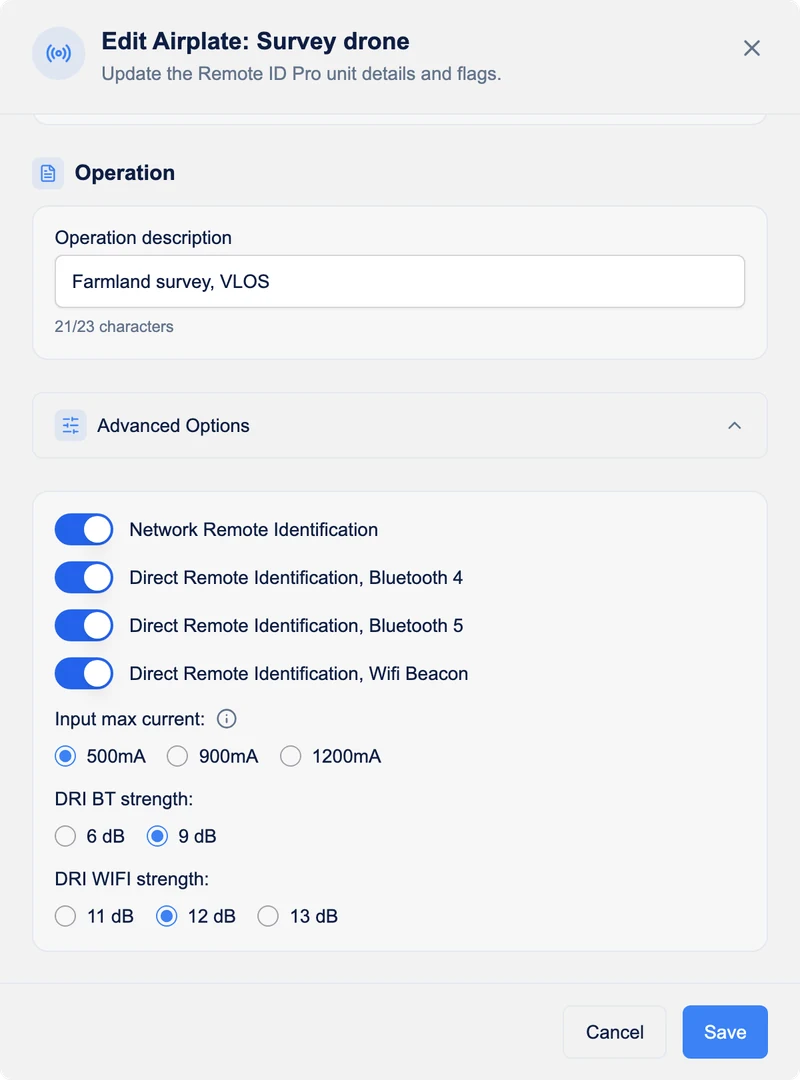
- Advanced Options: how the Remote ID Pro transmits:
- Network Remote Identification: if it is off, the Remote ID Pro does not appear on the map in the app;
- Direct Remote Identification, Bluetooth 4: Bluetooth 4 is an optional broadcasting method. However, if the Remote ID Pro needs to be seen on iOS products it needs to be enabled;
- Direct Remote Identification, Bluetooth 5: one of the mandatory broadcast means;
- Direct Remote Identification, Wifi Beacon: one of the mandatory broadcast means;
- Input max current: (advanced users only) 500mA, 900mA or 1200mA: the maximum current the device draws. This highly influences the charging time of the Remote ID Pro.
- Be careful changing this setting if the Remote ID Pro is connected to the drone’s battery. Make sure your drone can supply the desired input current;
- DRI BT strength: adjust broadcast power within regulations (shown when Bluetooth 4 or 5 is on);
- DRI WIFI strength: adjust broadcast power within regulations (shown when Wifi Beacon is on).
Press Save when you are done.
Setting up the Remote ID Pro through the REST API
Section titled “Setting up the Remote ID Pro through the REST API”You can also change these settings through our REST API. See API and data access.